Many video display problems trace back to one overlooked setting: aspect ratio. Stretched footage, unwanted cropping, and black bars at the top and bottom of the frame all happen when you choose the wrong ratio. And fixing it after you’ve published a video often means taking it down and re-editing all the footage.
Picking the right aspect ratio before you shoot is important to make sure your videos look polished and professional. This article answers what aspect ratio is, which ratios work best on each platform, and how to plan your shoot so your content holds up wherever you publish it.
What’s aspect ratio?
The definition of aspect ratio is straightforward: It’s the proportional relationship between a video or image's width and height. Typically, the first number refers to the width and the second number is the height. In 16:9, for example, for every sixteen units across the frame, there are nine units down.
That ratio describes the frame's shape, not its size. A 16:9 video is wider than it is tall whether it plays on a phone or a large monitor. Dimensions scale up or down, but the proportional relationship stays fixed.
Common aspect ratios and when to use them
There are several different aspect ratios you'll encounter as a creator. These common ratios cover the majority of video content you'll create or publish.
Aspect ratio | Shape | When it works best |
16:9 | Wide, horizontal | The standard aspect ratio for most videos. Matches TV screens, widescreen computer monitors, and most streaming platforms. |
9:16 | Tall, vertical | Fills a phone screen held upright. Built for smartphone-first viewing experiences. |
1:1 | Square | Equal width and height, producing a square image. Works well in social media feeds where horizontal space is limited. |
4:3 | Near-square, horizontal | Standard on early computer monitors and TV screens before widescreen became common. |
5:4 | Near-square, slightly horizontal | Found in some camera sensors and still photography formats. Not common in video. |
2.35:1/2.39:1 | Ultrawide, horizontal | Cinematic ultrawide format. Physical film records at 2.35:1 but is viewed at 2.39:1, so 2.39:1 is more common today. |
Aspect ratio vs. resolution: What's the difference?
Aspect ratio defines the shape of your frame. Video resolution refers to how many pixels fill that frame, which determines how sharp the image looks. The two are related, but they control different things.
A useful way to think about the difference is that the aspect ratio of a frame stays fixed regardless of the screen it plays on, but resolution changes when you want more detail. A 16:9 video can be 720p, 1080p, or 4K — same shape, different levels of clarity. Understanding both helps you make better decisions before you shoot. This means that aspect ratio controls what viewers see in the frame, and resolution is how clearly they see it.
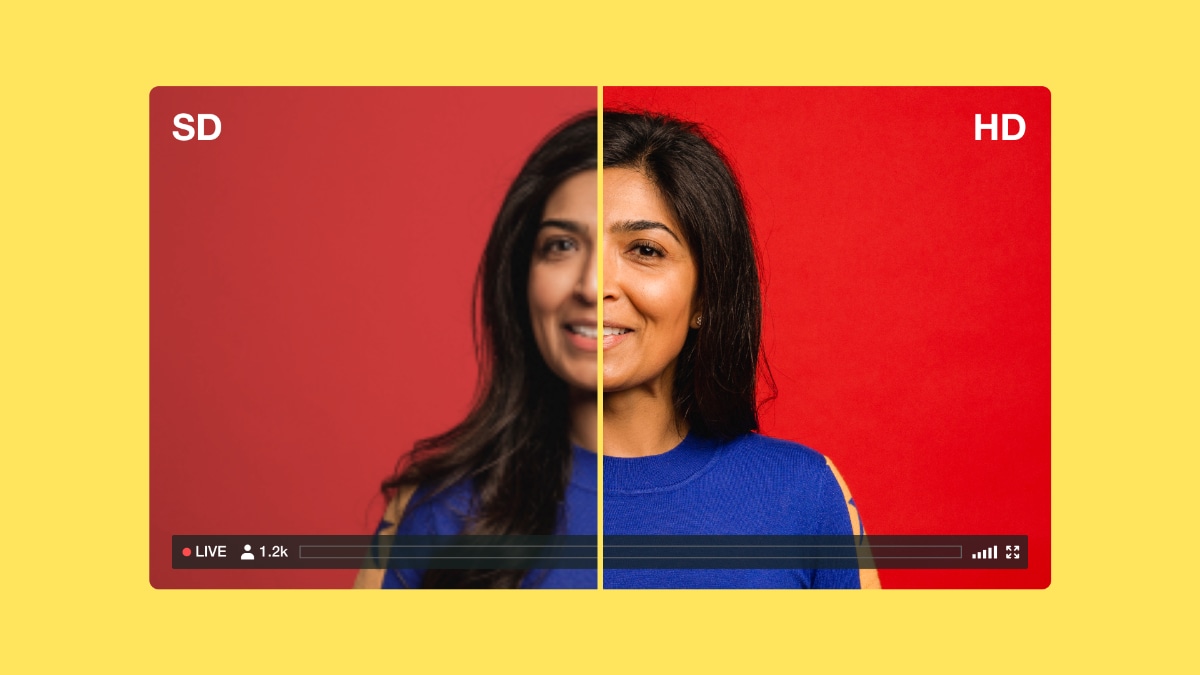
480p, or standard definition (SD), is rarely used for new video production today. Instead, producers use HD, UHD, and 4K resolutions.
1920x1080 (Full HD)
Full high definition, also written as 1080p, is the most widely used resolution for videos online. It delivers a sharp image on most screens but keeps file sizes manageable. Most smartphones, DSLRs, and modern camcorders record in 1080p by default, making it a practical starting point for most video creators.
3840x2160 (UHD)
Ultra high definition is commonly marketed as 4K, though the term technically refers to a 3840x2160 pixel count in a 16:9 frame. Aspect ratios at this resolution work best when you plan to repurpose footage across platforms, as UHD provides enough pixel data to crop and reframe for screens of all sizes without losing image quality.
4096x2160 (4K)
4K is the format used in professional film production. Shooting in 4K resolution gives editors significantly more pixel data than UHD, meaning there’s more flexibility when color grading or reframing in post. However, it’s a smaller increase in resolution quality than between full HD and UHD, and it can create some problems for online content creators.
When footage wider than 16:9 plays on a standard 16:9 screen, thin black bars can appear at the top and bottom of the frame (also known as letterboxing). If you're shooting in this format, adjust the frame for the cleanest viewing experience before posting your work on social media platforms or streaming services.
Best aspect ratios for social media platforms
Each platform has its own preferred aspect ratio, and publishing at the wrong size can result in cropped subjects, black bars, or a video that looks smaller than it actually is. Platform specs change over time, so double check each platform’s recommendations before launching your next project.
These are the standard recommendations for aspect ratios on popular social media platforms.
YouTube
The standard aspect ratio for YouTube uploads is 16:9, matching the player's widescreen layout. YouTube Shorts uses 9:16 to fill a smartphone screen vertically, but uploading a 9:16 video to the main feed results in pillarboxing with black bars on either side.
Compare Vimeo and YouTube →
TikTok
TikTok's platform is built around vertical video on mobile devices and publishes videos in 9:16 accordingly. Horizontal or square videos will display with black bars filling the unused space, reducing visual impact in a feed designed for full-screen vertical content.
Like YouTube, Instagram uses different aspect ratios depending on where the video appears. Reels and Stories both use 9:16. On feeds, Instagram’s algorithm prioritizes 4:5 posts, but 1:1 squares also perform well because they take up more screen space than a horizontal video without requiring viewers to rotate their phones.
For Facebook feed videos, both 16:9 and 1:1 work well. The aspect ratios for Stories and Reels follow the same 9:16 standard as Instagram, since Meta standardizes format requirements across platforms.
LinkedIn supports both 16:9 for horizontal videos and 9:16 for vertical. Horizontal videos work best for longer-form professional content viewed on desktop, while vertical works better for mobile-first content in the feed. If you're not sure which format suits your content, our guide to posting a video on LinkedIn walks through the platform's specs and how to decide where your video will do best.
X
X displays video at 16:9 by default. The platform accepts other ratios, but will add black bars to anything that doesn't match the player's widescreen layout.
How to choose the right aspect ratio for your video
The best time to decide on an aspect ratio is before you shoot. That way, you can frame everything and set up your camera shots exactly how you want viewers to experience your video. To decide what kind of aspect ratio makes sense for your context, consider where the video will be hosted and if it needs to work on multiple platforms.
If you're publishing in a single place, find the platform's preferred aspect ratio standard and shoot accordingly. 16:9 covers most use cases as the standard video aspect ratio.
If you're publishing across multiple platforms, shoot in 16:9 at 4K resolution. That wider frame gives you enough data to crop into 9:16, 1:1, or 4:5 in post without noticeably degrading quality across device screens. It’s also better to shoot with a wide horizontal ratio for multi-platform posting: A vertical 9:16 frame can't be cropped to a usable 16:9 without cutting most of the content from the sides.
Most cameras and editing tools display this information automatically, but knowing how to manually calculate aspect ratios helps when working with non-standard exports. To manually calculate a shot’s aspect ratio, divide the frame’s width in pixels by its height. A 1920x1080 frame gives you 16:9, and a 1080x1920 frame gives you 9:16, for example.
No matter what aspect ratio you use, make sure you compress your video correctly before publishing to keep file sizes manageable without reducing image quality.
Host videos up to 8K on Vimeo →
What happens when you use the wrong aspect ratio
When the aspect ratio of your video doesn't fit in the player or platform it's published on, the display compensates by changing the viewing experience in one of three ways:
- Letterboxing: Black bars appear at the top and bottom of the frame when a wider video plays in a taller space.
- Pillarboxing: Black bars appear on the sides of the frame when a vertical video plays in a horizontal player.
- Unwanted cropping: Parts of the frame are removed entirely to force a fit, often cutting off subjects at the edges.
You can't easily fix platform-added bars or auto-cropping on a file that’s already been published. You’ll need to re‑export the video in the correct aspect ratio and re‑upload it. So, the best way to make sure your video appears as you envisioned is to choose the right aspect ratio before you shoot and export.
Resize and adjust aspect ratios with Vimeo
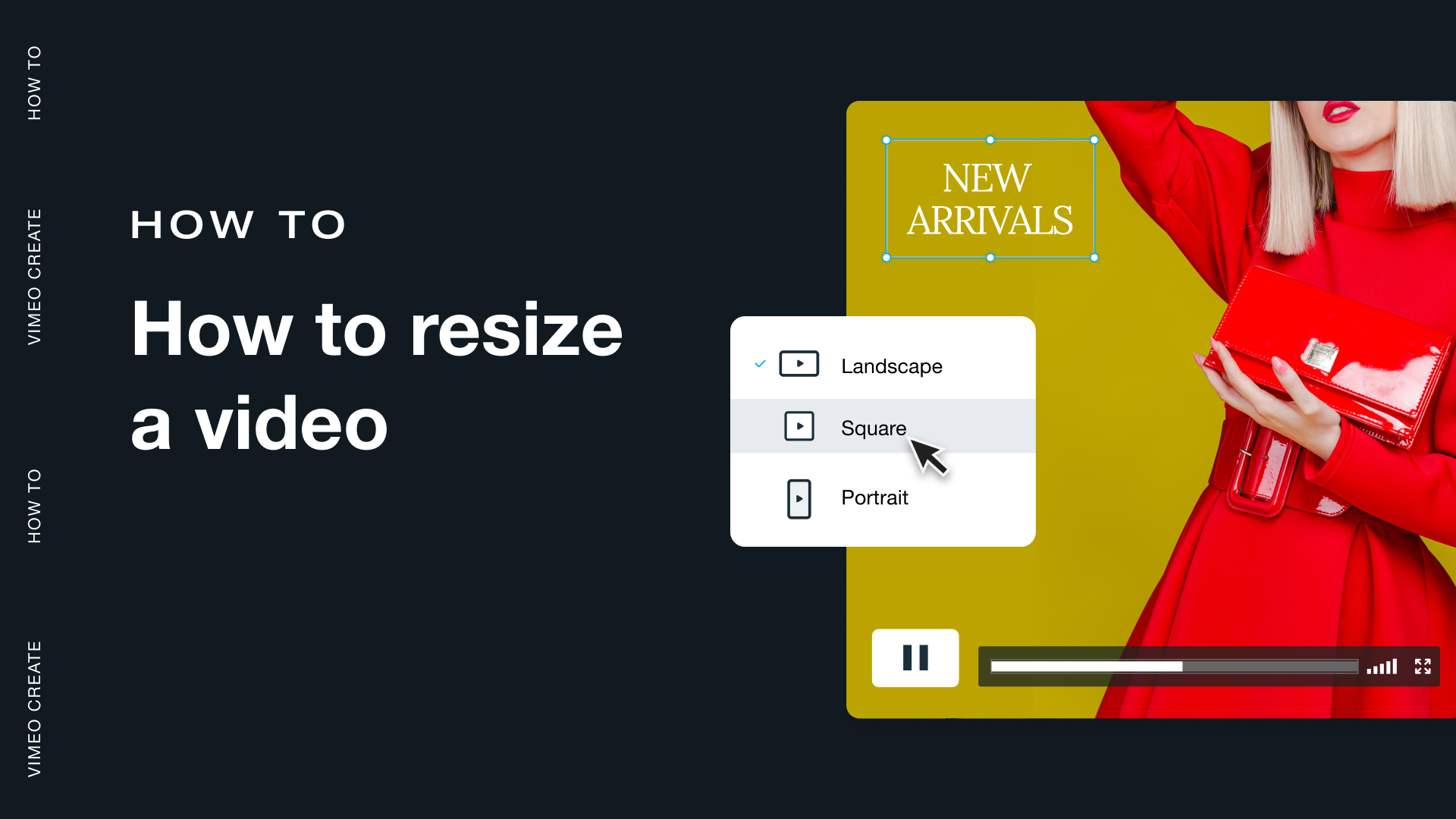
Once your video is shot and edited, getting it into the right format for each platform shouldn't require a separate piece of software. Vimeo's built-in web editor lets you switch between 16:9, 9:16, and 1:1 directly on the platform, so you can easily share it everywhere you want without compromising on quality.
Vimeo’s Crop + Fit feature handles resizing and reframing for different social channels without leaving your Vimeo account. You can adjust the frame, reposition the subject, and export a sized version for each platform from a single upload.