New vloggers have to pick up many skills as they grow their channels, including video editing. It’s best to start editing vlogs small, testing different video editing software to see what works for you, and using a tried-and-true process to get your bearings.
This article will set you up for a smooth start with video editing. It’ll outline a process for editing vlogs, provide recommendations for vlog editing software, and offer some video editing best practices to keep in mind.
What’s vlogging?
Vlogging, short for video blogging, is a form of video content in which creators record and share their personal stories, opinions, and creativity online. It’s an umbrella term covering a wide array of content types, from video game reviews to travel guides. Anyone who has a skill to teach or a story to tell and posts videos about it online is a vlogger.
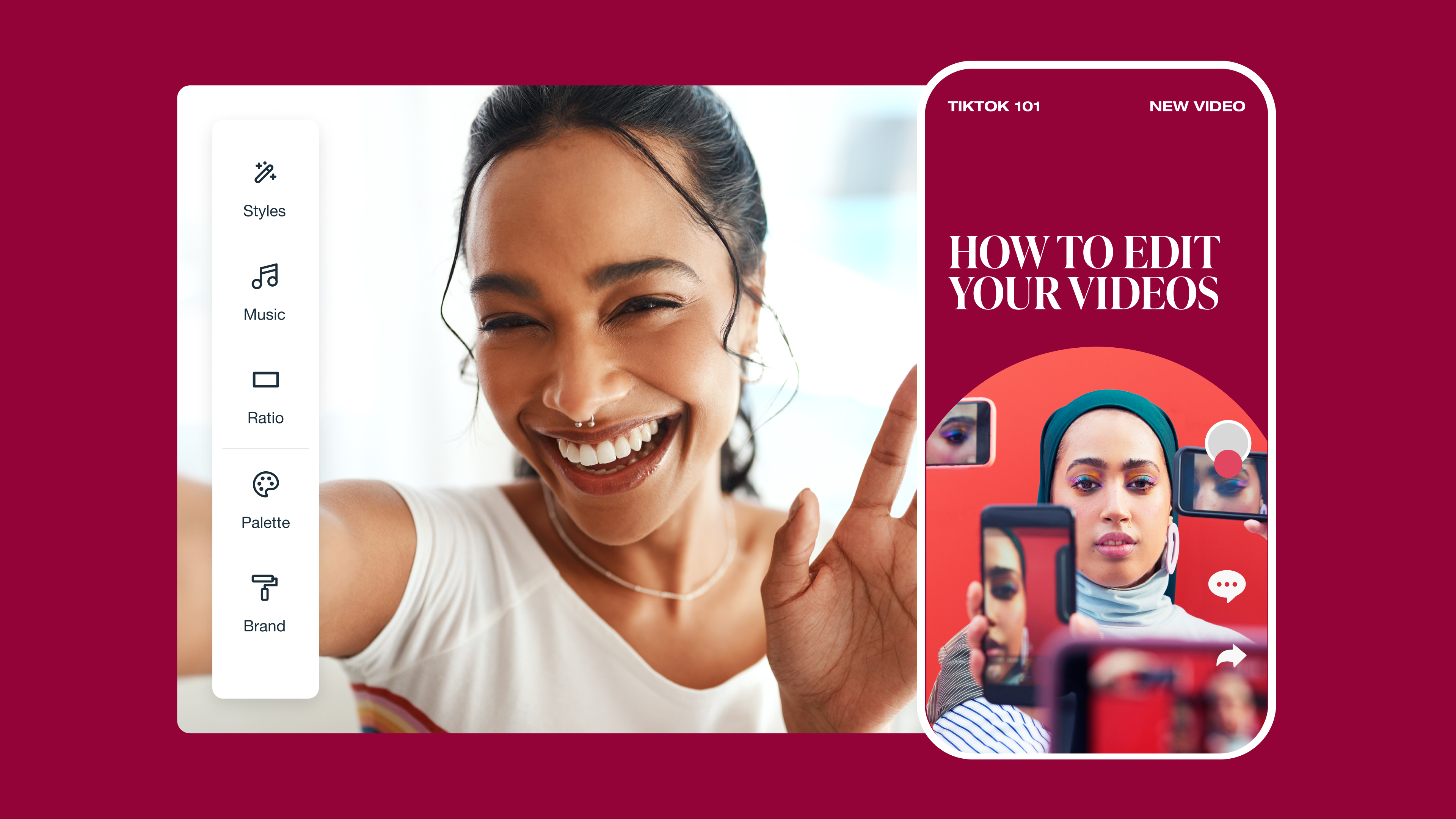
Some vlogs are short and sweet at only a minute or two long, while others can be hours-long ventures on a research topic that follows every rabbit hole. The style, format, and tone that’s right for your vlog depends on your niche. Vloggers who focus on their personal lives often succeed with shorter, TikTok-like clips, while travel vloggers should focus more on cinematographic techniques, such as camera shot style.
What are the steps to editing a vlog?
Video editing is the biggest skill every new vlogger needs to learn. Everyone develops their own preferred workflow, but here’s a tried-and-true vlog editing tutorial using Vimeo to help you get started.
1. Organize your assets
Open your video editing software, upload your footage and audio, and organize it as necessary. The best video editors will keep all your files in one place.
In Vimeo’s browser-based editor, just open Vimeo Create and click the plus sign in the “Media” header to upload. You can store up to 7 TB of assets in the Media and Audio tabs, which also house stock assets to fill in any gaps.
2. Add assets to the timeline
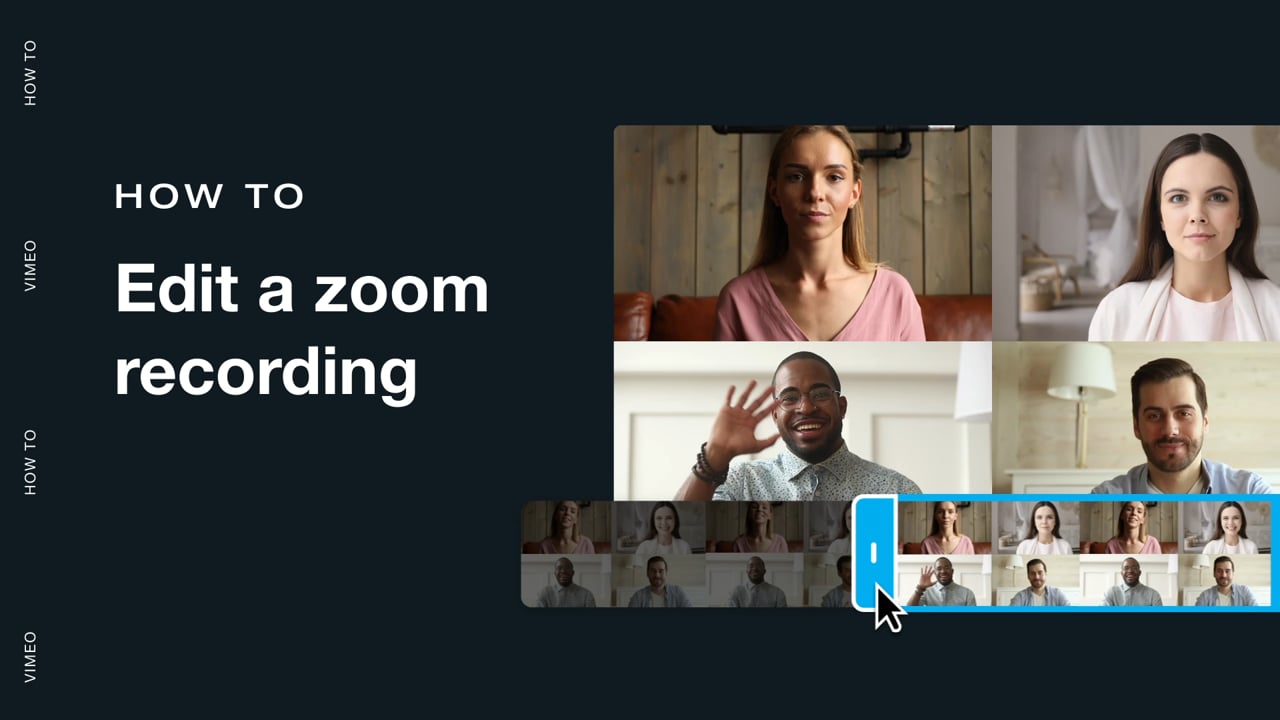
Open your main video file in the video editor to start putting everything together. Drag and drop video and audio assets onto the timeline in roughly the order you want to use them. Don’t worry about transitions or other effects yet — just get everything placed so you can see how it all lines up.
3. Use text-based editing to cut down files
With Vimeo AI, editing your video transcript makes the same cuts in your video. Vimeo’s text-based video editing tool simplifies this step by automatically converting your speech into a document linked to the moment each word is said in your video. You won’t have to flip between your transcript and the video to accurately remove fillers, pauses, and mistakes from your vlog.
If your preferred video editing software doesn’t offer text-based video editing, open a transcript of your video or your script alongside the video editor. Listen for filler words, pauses, and restarts in your video file. Trim the footage as needed until you're left with only the content you’ll definitely use.
Use Vimeo AI to polish your video →
4. Slice and add transitions
Slice video and audio files to stitch them together, then add transitions to smooth shot changes. Make sure to vary your transitions occasionally to keep them visually interesting; don’t use the same one more than two or three times in a row.
5. Add visuals and a thumbnail
Position any overlays or other visual effects you’d like on the timeline to adjust your video.
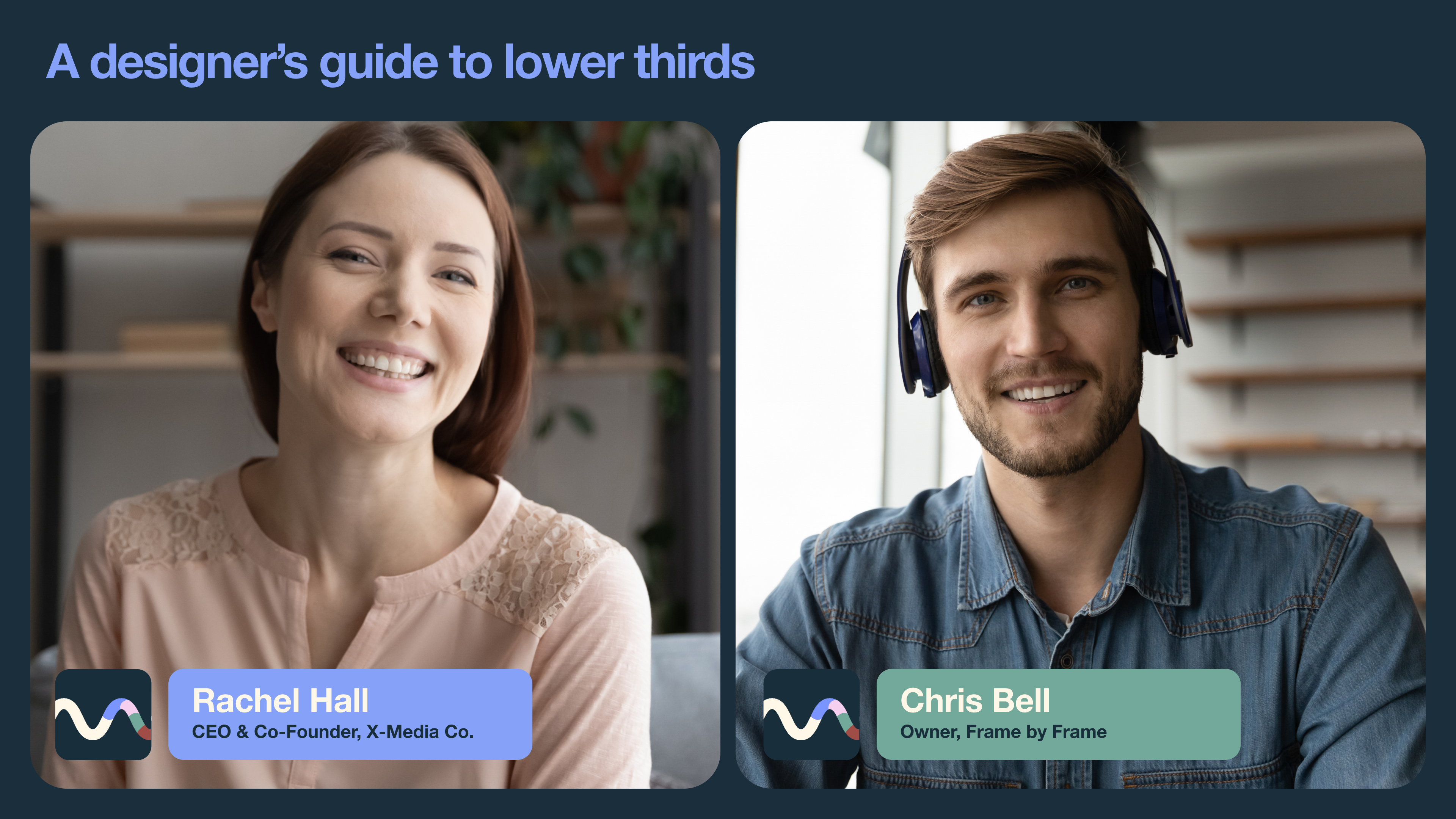
Before you’re ready to publish, your video will also need a great thumbnail. This should be an attention-grabbing image that conveys your blog's style, tone, and content. You can create an image yourself and upload it, or you can pick a frame that captures your video's energy. Screenshot it, then add any graphics and text you’d like to create an informative, attention-grabbing thumbnail. Once it’s ready, upload it to Vimeo Create’s Media folder.
6. Publish
Save your video and publish it to your preferred channels, like Vimeo, YouTube, or LinkedIn. With Vimeo, you can push your video to multiple channels at once while keeping the file in a central location so you can make further edits if needed. You can send the file, stream it live, or post it to a channel or private group.
Edit and resize your vlogs with Vimeo →
After video editing, a new project begins: managing your video to grow your reach. Add video SEO, such as a description and tags, to get it picked up by search engines. Post about it on your social media channels to drive traffic to your creation.
Best practices for video editing vlogs
Here are some video editing best practices that are especially important for vloggers. Keep them in mind as you follow the above process:
- Design an eye-catching thumbnail: Thumbnails are your first chance to make a good impression on potential viewers, so use color, visuals, and text to grab their attention while portraying your personal style.
- Trim unnecessary pauses or low-quality audio: Dead space and garbled audio can break viewers’ focus, leading them to disengage. Trim recordings precisely and use only high-quality audio. Text-based video editors like Vimeo make this process efficient.
- Add transitions for a seamless flow between scenes: Start with three to five video transitions you like — such as fade, dissolve, and wipe — and use them in all your videos. As you get comfortable with video editing, experiment with more complex techniques, such as whips or timelapses.
- Incorporate background music: Set the mood and keep viewers engaged throughout transitions. Make sure your speech is still well-defined and easy to hear over music and other sound effects.
- Remember the 80/20 rule: Focus your efforts on what adds the most entertainment value to your video. 20% of your productivity accounts for 80% of your results, so identify what that 20% is for you and optimize your videos for it. In vlogging, this often means streamlining scripts and cleaning up audio, because audiences are interested in what you have to say.
3 best video editors for vloggers
Your choice of video editing software has a significant impact on how you produce and post your content. With any of these three video editors, you’ll have everything you need for post-production, though some are better than others for specific niches.
1. Vimeo
Vimeo is unique among video editing platforms because of its sheer versatility. It offers a vast array of features that support content creators at any scale, from small hobby channels making their first video to enterprise organizations that want their own streaming service. You can take advantage of their free plan to try it out, and Starter plans start at $12/month billed annually.
Key features:
- A browser-based editor accessible from any device with an internet connection, including a mobile app for on-the-go edits.
- Timeline and text-based editing for precise trimming to help you optimize timing and transitions.
- Customizable brand kits that centralize all the assets you need to create on-brand experiences.
- A deep library of ready-made templates that give you a head start on any video editing project.
Try Vimeo's creation and editing platform now →
2. Adobe Premiere
Adobe Premiere (formerly Premiere Pro) is a professional-grade video editing tool geared toward filmmakers and content creators with eclectic, creative-forward needs. It includes a wide range of built-in effects, such as AI-powered masks and color correction. Adobe offers a brief free trial to try it out, and you’ll pay $23/month after that with an annual subscription.
Key features:
- Pro-grade tools like audio editing and object masks give creators powerful tools that’ll improve the production value of their videos.
- Cross-device compatibility that lets you edit and organize assets across multiple devices, sync them with the computer you use to edit videos, and publish simultaneously to multiple channels.
3. iMovie
iMovie is the free video editing software that comes preloaded on Apple devices. Despite its low price, it’s generally regarded as one of the most feature-rich video editing tools on the market. iMovie is useful if you use an iPhone to capture video, since it lets you natively modify those device’s additional camera effects, like depth of field and focus points.
Key features:
- Royalty-free smart soundtracks intelligently match themselves to the length of your video.
- Color controls, such as chroma keying, filters, and color correction, help you fine-tune the look and feel of your video.
FAQ
How long should my vlog be?
Your vlog’s ideal length depends entirely on your platform and content, but shorter is generally better. After you’ve made a few videos, try to maintain the average length you’ve established so viewers get accustomed to your style.
Here are a few of the most common vlog types’ average lengths:
- YouTube Shorts: 30 seconds
- Daily journals: 15 minutes
- Product reviews: 30 minutes
- Skill sharing: One hour or more
What role does AI play in vlog editing?
AI can automate and streamline some steps in video editing, but it can’t (and shouldn’t) replace human creativity. While you could use AI to generate all the visuals and voiceovers you’d need to put together a vlog, viewers are more likely to bounce from videos that look and sound AI-generated. Instead, lean on AI video editing where it works best:
- Generate captions and subtitles using speech-to-text functions that create accurate transcripts in a fraction of the time it would take a person.
- Create metadata like descriptions, tags, and video chapters that help search engines and video platforms identify what the video is about to boost your SEO.
- Use text-based editing to detect and remove pauses and stutters that can hinder the viewing experience.
Start creating high-quality vlogs today with Vimeo
The most important step in your vlogging journey is the first. Your choice of video editing platform impacts everything you do down the line. Set yourself up for success by picking a versatile, intuitive platform like Vimeo, where you can edit, publish, and collaborate all in one place.