Getting your audience’s attention can be difficult, and you have to make an impression first. Looping videos — clips set to auto-replay — are a great way to earn more views and increase engagement metrics across social channels and ads.
Creating looping videos doesn’t have to be technically challenging, either. With a platform like Vimeo, anyone can upload, edit, customize, and loop videos according to specific content goals, whether that’s meeting marketing KPIs or teasing new creative projects.
In this article, you’ll learn how to make a looping video that drives results.
What’s a looping video?
Looping video is one of the most powerful short-form media formats, because it’s simple and accessible. This type of video is typically short, and it automatically repeats when it reaches the end, allowing users to rewatch with no extra effort.
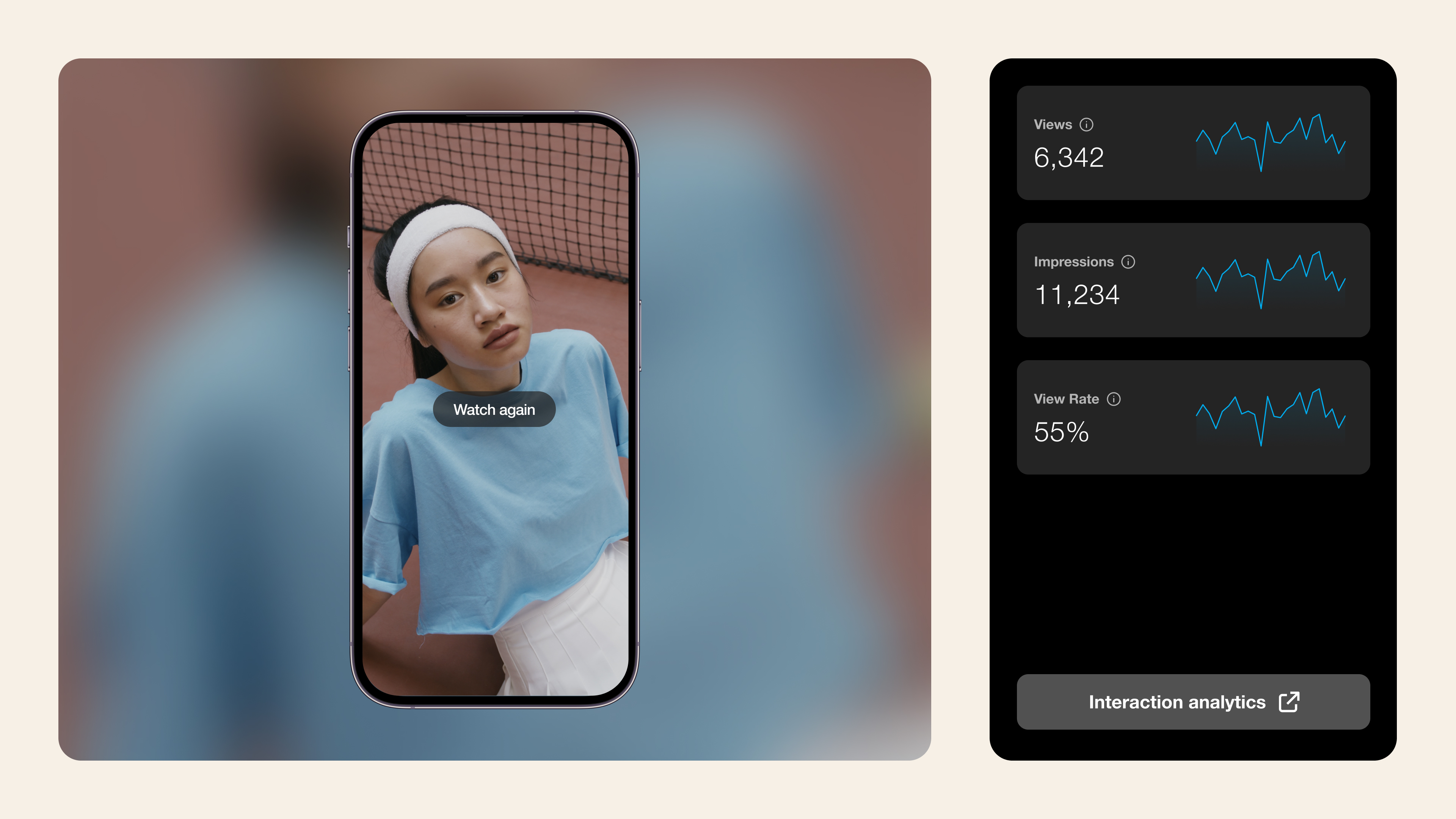
Every time the loop restarts, it counts as a new view, which boosts key metrics on social platforms. Plus, when users rewatch a video, they tend to engage more through comments and shares.
These reasons explain why looping videos are especially popular on social channels such as TikTok and Instagram, although they’re versatile enough for website embeds and digital advertisements.
Create looping videos with Vimeo’s editor →
Creative ways to use looping videos for visual storytelling
Audiences often have a soft spot for comedic looping videos, but you can also use this format for creative brand storytelling through:
- Background loops for websites and landing pages: Whether full-screen or partial, background loops make a strong visual impact and liven up your calls to action.
- Looping product demos and tutorials: Highlighting key product features in a short video clip encourages viewers to rewatch and catch all the details.
- Video loops for digital signage: A looping digital signage playlist that integrates fresh promotional content is a great way to grab prospective customers’ attention.
- Ambient loops for events and presentations: Striking ambient loops can set a clear tone for presentations, provide event highlights, or share key information with attendees.
- Funny social teasers and trends: Finally, try generating excitement with short loops that tease a release or jump on a viral trend.
Software for creating looped videos
Most video software can create looping files — here are a few examples:
- Vimeo: You can use the dedicated “Loop” button in the video editor, and then customize your loop as needed. You’ll also get access to a wide variety of tools for creating and hosting all your video content.
- Kapwing: This is an accessible, in-browser tool that creates simple looping videos quickly and lets you determine how many times the content will replay.
- Capcut: With this AI-powered video editor, you can loop existing videos or use stock footage to create basic content.
- Adobe Premiere Pro: While it’s a more expensive option, this Adobe platform lets you loop videos and gives you a wide range of creation and editing tools.
Why Vimeo is the perfect platform for your looping videos
Vimeo offers a comprehensive toolkit that helps you upload, edit, customize, and loop videos for maximum impact. Here are some of its top features.
Loop playback controls for hosted and embedded videos
With Vimeo, you can create top-quality looping videos to share directly or embed on other platforms. Vimeo’s controls let you add transitions, set custom or responsive dimensions, and define key parameters such as full or partial playback.
High-quality streaming without compression or ads
While many tools compress your content and decrease its quality, Vimeo lets you upload and host videos at high resolutions for maximum impact. Plus, if you use Vimeo’s video player, you won’t have to worry about ads that might distract your audience.
Quick and powerful video editing
Some platforms simply offer a “loop” option, but with Vimeo, you can polish your looping sequence so it matches your vision. Vimeo’s text-based editor lets you trim and arrange clips, and you can add extra effects or interactions to make your looping videos stand out.
Customizable brand kits
You can define a visual Brand Kit directly in Vimeo, including fonts and colors that reflect your unique style. This helps you create looping videos that maintain a cohesive, professional look and are familiar to your existing audience.
Showcase and portfolio tools
Vimeo’s Showcases let you create branded galleries and landing pages where you can display your looping videos. These showcases are great for product demos and marketing campaigns, as well as for client-facing portfolios.
Loop and share your videos with Vimeo →
How to loop a video in Vimeo
Now, let’s see how to make a looping video using Vimeo’s editor.
Looping a video on Vimeo’s web player
After uploading a video to your Vimeo library, you’ll want to:
- Click on “Share” in the top-right corner of the editor.
- Select “Embed” at the bottom of the right-hand sharing menu.
- Under “Playback”, toggle on the “Loop” option.
That’s it — now the video will loop when viewed in Vimeo’s web player.
Looping an embedded video
The looping setting above is all you need if you own the video and will host it with Vimeo directly. If you want to embed the content on a website or social platform, here’s how to enable replay using the video editor:
- Follow the above instructions to enable looping.
- Copy the embed code in the box right below the “Loop” option. It will contain the parameter “loop=1.”
- Use this embed code to share the video wherever you like.
You can also manually add the “loop=1” parameter to an existing embed code to loop a video you’ve already shared.
FAQ
How do I create looping videos on an iPhone?
If you want to make looping videos using your iPhone, you can download the Vimeo app to get a loop option, along with lots of other video editing and sharing features.
How long should a looping video be?
Most looping videos are short, somewhere between a few seconds to a minute. If you’re sharing on social channels, you’ll want to consider each platform’s video length requirements — for example, 15 to 60 seconds for Instagram Stories and three minutes for YouTube Shorts.
Can I loop a video for free on Vimeo?
Vimeo’s free plan lets you make a looping video easily and share it anywhere with an embed code. For a small monthly cost, you can upgrade your Vimeo plan and get access to a full suite of video editing tools, along with a custom player.
Create high-quality looping videos with Vimeo
A great looping video encourages your audience to continue watching and engaging with your content. This type of video is great for storytelling and marketing, and with the right tools, it’s quick and simple to create.
Vimeo’s all-in-one platform is a top choice for editing, hosting, and sharing professional videos of all kinds. With robust tools that let you trim, loop, polish, and enhance video clips, you can create impactful content that matches your vision and branding.