A video montage is a powerful, versatile way to tell a visual story. Well-designed montages can highlight key moments in anything from building projects to community outreach programs, and give them a narrative structure that connects with your target audience.
This article outlines how to make a video montage quickly and easily. We’ll also explore some best practices for creating effective montages and introduce tools like Vimeo that help you edit and perfect video clips.
What’s a video montage?
A video montage collects several related clips or images into a single narrative with a specific theme. Montages are common in films, where they're typically used to advance the story's timeline while highlighting the most interesting steps that happened along the way (e.g., a training montage).
In marketing and content creation, montages often serve a similar purpose. They highlight the most impactful moments of a story, such as the development of a new product, to evoke an emotional response from viewers.
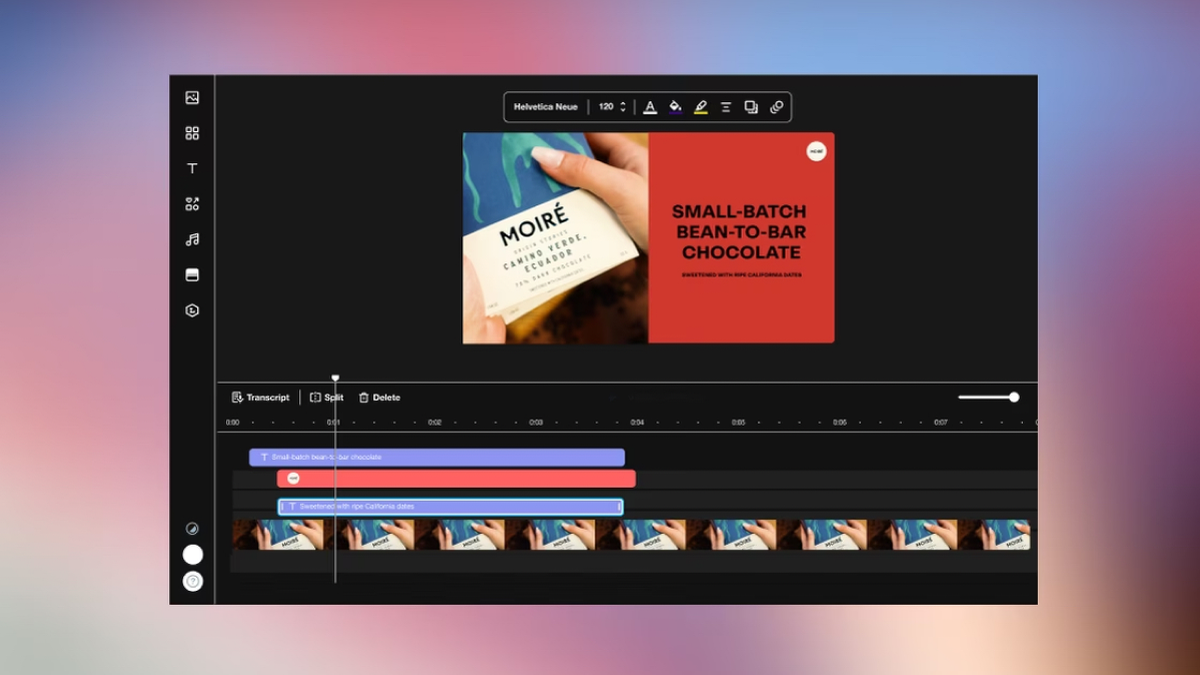
Montages are complex, and they rely on careful timing and a collection of high-quality clips you can stitch together. So you’ll need to start with the right tools. Vimeo’s video hosting and editing platform lets creators and marketers make video montages online for free. Its browser-based video trimming and organization tools help you manage multiple clips, extract the most essential parts, and collaborate with your team as needed to put them together quickly.
Create your video montage with Vimeo →
How to edit a video montage: 5 steps
If you’re looking for the best way to make a video montage from scratch, you can follow these five steps.
1. Gather your clips and other media
First, you’ll need to assemble the footage and audio you want to use in your video montage. Make sure all your video clips have the same resolution and frame rate, so there won't be sudden shifts in image quality.
Then organize the media in your video montage application, so all the relevant information is available at a glance. For example, you can create a new folder in your Vimeo Library and upload your clips, then add tags to create labels for easy identification.
2. Arrange your video clips in order
Next, you’ll use software or a browser-based video editor like Vimeo to assemble all your clips into a rough timeline. You’ll trim and adjust them later — for now, just focus on getting the sequence right and identifying keyframes. Many great montages start with an establishing shot of the setting, then build toward a climax that evokes an emotional response and offers a satisfying conclusion.
3. Trim and edit the clips
Once you have a rough outline of the story you want to tell, you can optimize it by trimming and adjusting video clips to remove anything that doesn’t contribute to the overall narrative. Don’t forget to add transitions — Vimeo’s drag-and-drop timeline and text-based video editor help you experiment with different sequences and effects.
4. Add elements like music and branding
Now that you have the visual elements organized and polished, it’s time to add the extra touches that make a video montage shine. That includes audio, like music and sound effects, and video overlays, such as text and animated stickers. Keep your branding in mind, and make sure each element uses colors and styling that are consistent with your image.
5. Preview and export your montage
Once you’re finished, watch the video from start to finish a few times to catch issues like missing transitions or quality dips. If possible, invite test viewers to do the same so you can get a fresh perspective. After that, you’re ready to publish your video montage or export it for use on social media platforms.
Top tips for editing your video montage
The editing process is the most involved step, so now that you know how to create a video montage, here are some tips for making it professional and compelling.
Aim for visual consistency
It’s important for visual elements to remain consistent throughout the montage. Sudden changes in color palette or perspective can confuse viewers and cause them to miss key information. You can use Vimeo’s brand kit to apply elements like logos and colors, turning disconnected clips into a cohesive experience.
Use dynamic pacing
Pacing helps move viewers through a story, and it needs to ebb and flow along with the narrative. For example, as you build toward the climax of the story, you can increase the clip transition pace to build audience anticipation. Then you can slow it back down, giving your final message plenty of time to sink in.
Apply storytelling techniques
Consider montages you’ve seen in films and videos, and try to identify the x-factors that make them work. Elements like smooth transitions, impressive visual effects, and emotional music improve a video montage's production value and make it more memorable.
Include supporting audio
Immersive background music and sound effects are key to most great storytelling, especially in a montage where there’s often little to no dialogue. Voiceovers help you narrate directly to your audience, but be careful not to distract too much from the visual experience.
Add interactive touches
If you really want to get creative, you can include interactive moments throughout the montage that encourage viewers to actively participate in the experience. Branching paths and clickable hotspots highlight key moments and give audiences a reason to rewatch the video to see what happens if they interact differently.
5 best tools to create quality video montages
Now, here are five video editors that can help you create compelling montages quickly.
1. Vimeo
Vimeo is an online video editor, hosting platform, and collaboration tool all wrapped into one package. You can upload your assets in a centralized dashboard, then organize them and collaborate on projects — making Vimeo one of the best video montage makers.
Powerful editing tools help you create impressive montages with animated transitions, high-quality video and audio, consistent branding, and interactive features. Plus, with AI-powered text-based editing and timeline tools, you can quickly make edits to dozens or hundreds of clips. You’ll also get access to robust analytics, so you can see how your audience responds to the final product.
Try Vimeo’s online video maker and editor →
2. Canva
Canva is a lightweight, easy-to-use platform for making quick video edits. This tool helps you assemble and trim footage and organize it into a rough timeline, then add additional visuals and branding.
You’ll need a premium subscription to access all of Canva’s video editing features and assets, including a library of stock footage and effects that can enhance your video montage.
Connect Vimeo and Canva →
3. Adobe Premiere Pro
Adobe’s video editing software works best if you’re already invested in this ecosystem, since you can use shared Creative Cloud libraries and other collaboration tools to manage projects across multiple Adobe solutions. With Premiere Pro, you get plenty of features for editing video clips and stitching them together into montages. You can then add audio and animations, and use advanced features like color correction and automated captions.
If you also pick up an Adobe Stock subscription, you’ll get access to thousands of royalty-free video and audio assets. Alternatively, if you just need to create a simple montage, you can try the free Adobe Express montage maker.
Connect Vimeo and Adobe Premiere Pro →
4. iMovie
iMovie is the native video editing software for macOS, offering useful tools and reliable stability. You get basic video creation and revision features, along with options for trimming clips, adding new styles, including dynamic music, and automating AI edits.
As a largely offline program that runs on your device, iMovie isn’t the best option for collaboration, and it doesn’t provide video hosting. It’s best for small independent creators who need a simple way to assemble and export video montages on Mac.
5. Clipchamp
Clipchamp is Microsoft’s answer to iMovie. It’s a fairly new tool, and Microsoft is still changing it often to try and better compete with Apple, making this a good option for one-off projects but less reliable as a long-term investment.
At the moment, Clipchamp is a free tool for creating simple clips and montages. You can record video directly in the app, and use AI tools to perform edits and create subtitles or voiceovers. Plus, you get access to a library of stock assets, and there are multiple ways to share and export your finished projects.
FAQ
Can I make a video montage without technical skills?
With Vimeo’s browser-based video editor, you can quickly organize all your clips and assemble them into a complex, professional video montage — even if you’re new to video creation or not very tech savvy.
How long should a video montage be?
The right length for a video montage depends on your subject matter and goals, but you’ll rarely want to make your montage longer than five minutes. Two or three minutes is often perfect for engaging viewer attention fast, then delivering your message before they get bored.
Can online montage videos look professional?
Anyone can create a professional video montage using a beginner-friendly online tool such as Vimeo. With Vimeo’s video editor, you can upload your video clips and assemble them into a high-quality production that includes audio and effects.
Create professional video montages with Vimeo
With the right tools and best practices, you can create a compelling video montage that delivers your message clearly and evokes an emotional response. Make sure to start with high-quality clips, and consider how each edit and added element comes together into a cohesive narrative.
To streamline that process, Vimeo’s all-in-one platform offers an intuitive timeline editor, secure video hosting, branding tools, and AI-powered features like text-based editing. You can check out Vimeo Academy to preview the many ways you can leverage this platform to create impressive, memorable montages and other video content.