When files live across scattered folders and shared drives, your video library stops acting like a system and feels more like a junk drawer. A good video organizer fixes that by giving you faster ways to organize files and find what you need.
In this article, we’ll explore the features that set basic video file management software apart from all-in-one tools, and look at top solutions like Vimeo that let you upload, sort, control access to, and collaborate on videos in the same workspace.
Why is video organizing software useful?
Video organizing is the process of storing and controlling files, so you can find what you need quickly and share content with the right people. For creators and businesses, the right organizer cuts out busywork that eats up editing time and limits review cycles, and it adds controls that let you keep content secure.
Good video organization software also:
- Helps you finds clips and versions faster
- Reduces duplicates and storage sprawl
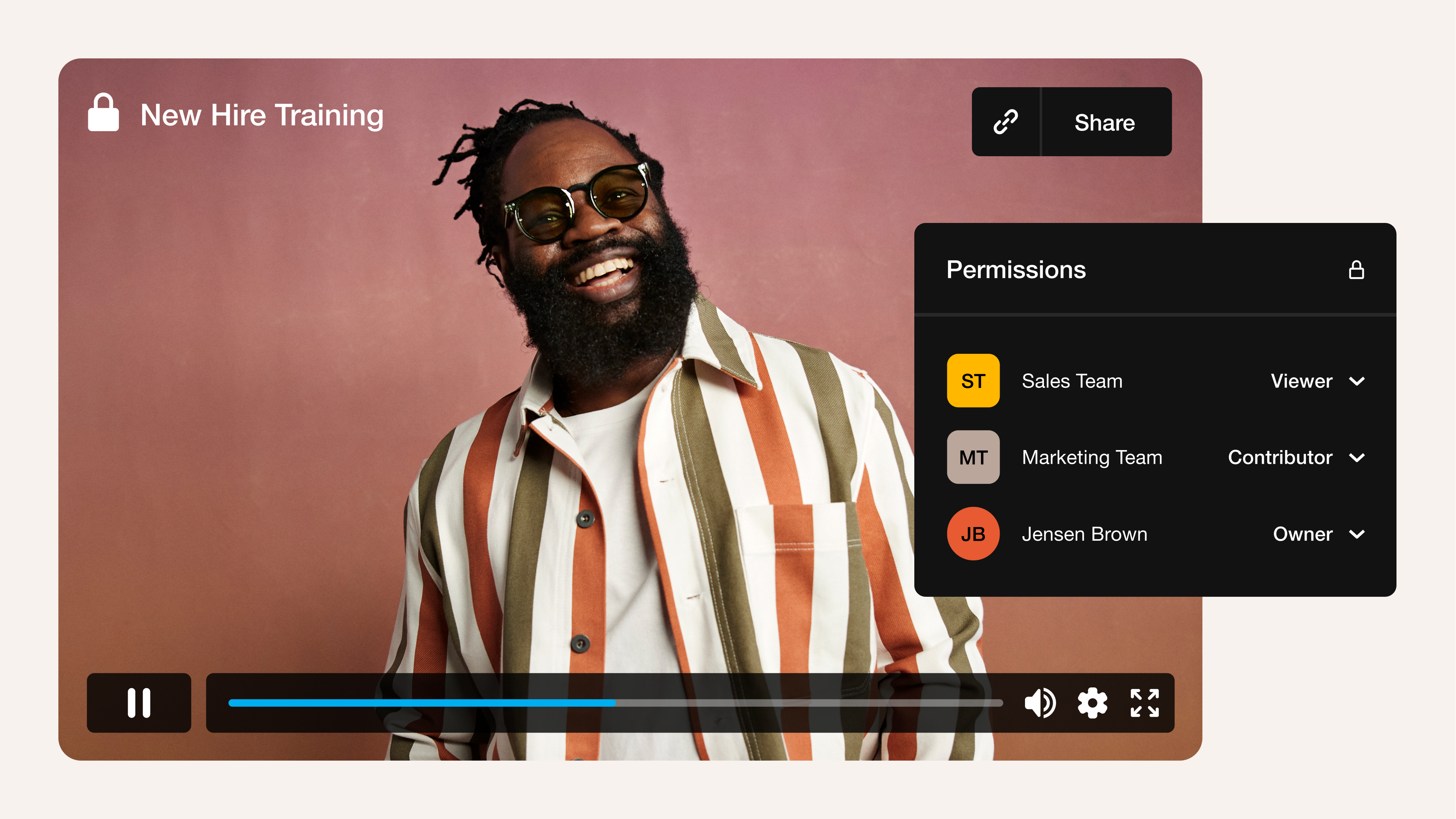
- Keeps user access under control with member roles
- Makes collaboration smoother
- Stays scalable as your library grows
Key features to look for in video organizer software
A good video file management system can make a huge difference to your workflows — here are some features worth prioritizing.
Video management
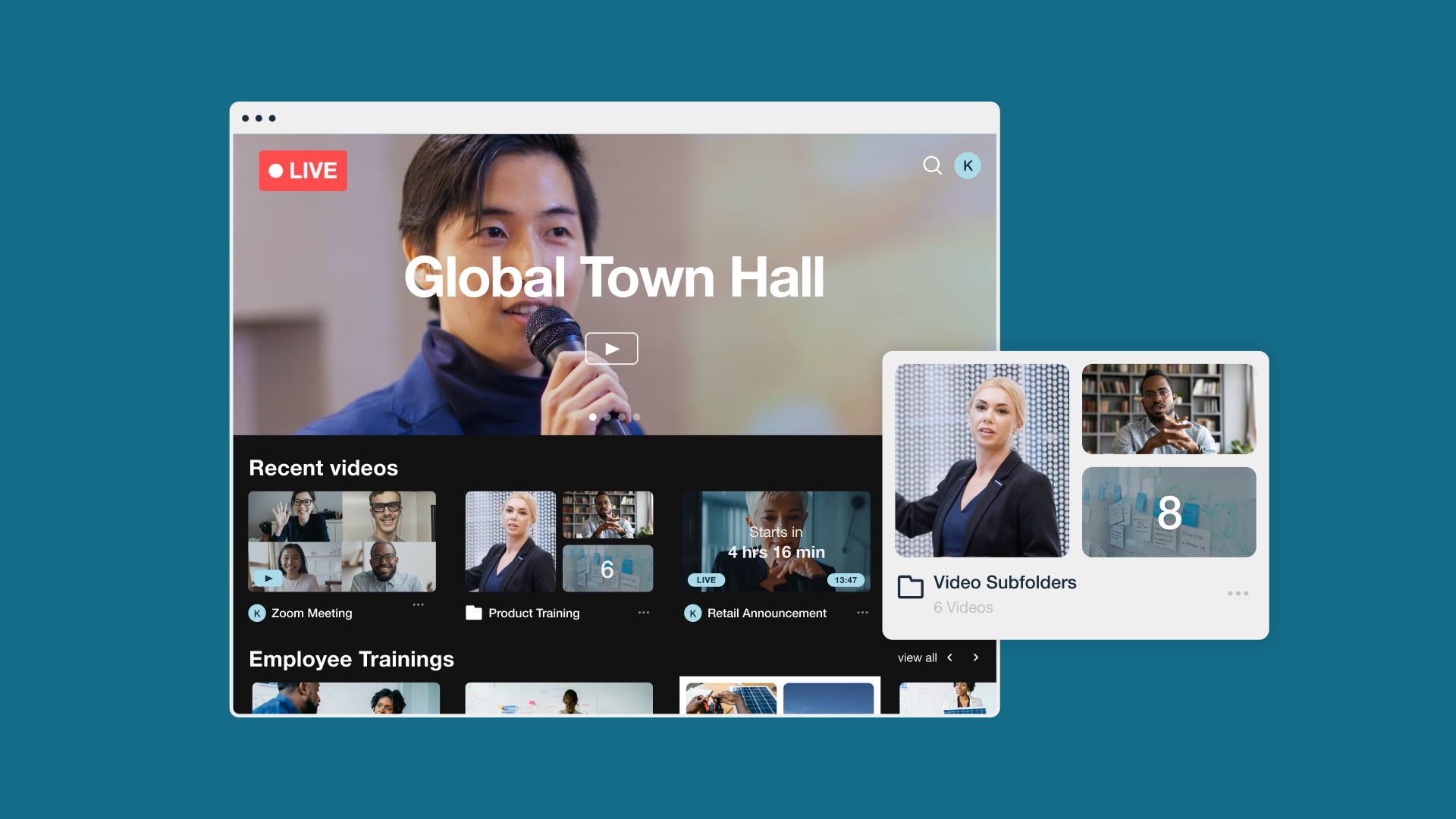
Above all else, your chosen tool should make it easy to browse and retrieve videos, even when your library includes thousands of MP4s and exports. Look for clear structure and ways to sort and filter beyond basic folders, such as project grouping and searchable views.
For example, Vimeo offers secure, online Video Library software built for professionals. Vimeo centralizes storage and sharing, and it lets you control exactly how your library is organized.
Manage your videos with Vimeo →
Facial recognition
If the same people show up across many projects, facial recognition can speed up organization. Instead of scanning folders or scrubbing timelines, you can pull every clip that includes a specific person.
Metadata filters and custom tagging
The best organizers let you search and filter based on video metadata like capture info, camera details, resolutions, and frame rates. You’ll also want a flexible tagging system so you can manage different types of files and projects.
AI-powered search
Some software lets you use AI to find content based on what's in a video, which can be even faster than using filters and tags. You can search in plain language, then skim results for likely matches.
Duplicate detection and file cleanup
File duplicates can chew up storage space and create version confusion. A strong organizer flags identical or near-identical files, so you can clean up safely and keep your library lean.
Privacy and local processing
Some teams want the convenience of cloud storage, while others prefer local control for client-focused work. Either way, you’ll need a solution that keeps your videos secure.
6 best media library managers
Now that you know what to look for, here are six popular video organizers compared.
1. Vimeo
Vimeo helps you manage robust and professional video libraries. You can upload your content securely and easily, then organize it all in one place. Plus, you get full control over who can view or make changes to files, and collaboration tools that keep feedback tied to the right versions.
Pros:
- One shared video library your entire team can use from anywhere
- Powerful search and filter options
- Strong access controls for private sharing and review
Cons:
- Not a local file manager
See what your Vimeo library can do →
2. Wistia
Wistia focuses on marketers, with tools for managing hosted videos, branding experiences, and tracking viewer analytics. This platform also offers plenty of organization tools, like custom tagging and quick searching.
Pros:
- Organization features like folders, tags, filters, and archives
- Multiple video upload and import options
- Video analytics tied into library structure
Cons:
- Not the best fit for projects outside video marketing
3. Peakto
Peakto is a macOS-first organizer for creators who already have large libraries and don’t want to reorganize everything from scratch. This tool indexes your media files locally, then lets you browse your library from anywhere through a web interface.
Pros:
- AI-based organization and categorization
- Local-first library management
- Secure web access from any device
Cons:
- Remote access relies on the Mac where your library is stored
4. Adobe Lightroom
Adobe Lightroom is a natural choice when you already use Adobe for video editing, and you want to tie organization into your existing workflows. While this platform is mainly focused on photos, it can also help you maintain video libraries.
Pros:
- AI automatically filters and groups media
- Organization based on keywords and facial recognition
- Easy integrations with the rest of the Adobe ecosystem
Cons:
- Not a video-first platform, and pricing can be higher than alternatives
5. Google Photos
Google Photos is simple and convenient for personal media files, especially when your library spans multiple phones and laptops. You’ll get automatic grouping and cloud-based access, although permissions and collaboration features are limited.
Pros:
- Easy to use across devices
- Automatic face grouping and smart albums for lightweight organization
- AI-powered organization and searching
Cons:
- Few professional-grade features and not much customization
6. ACDSee
ACDSee is software for managing your local media library, but with a professional focus. This tool supports facial recognition and AI organization, along with advanced filtering and sorting.
Pros:
- Desktop-based library management
- AI keywords and search options
- Additional editing and asset management features
Cons:
- Key features are spread across a variety of tools and plans, so getting the most from this platform relies on investment in the full ACDSee ecosystem
How to choose the right video organizing software
Here’s what to consider before you commit to a video organizer:
- Migration needs: If your video files are stored in a shared drive or on individual laptops, pick a tool that can index local storage and handle a lot of uploads.
- Your budget: Free video file organizer software works well enough for small libraries and personal use, but paid tools typically offer better collaboration features, higher storage limits, and more support as your needs scale.
- Desired search features: Customizable filters and tags are useful, as is automated organization.
- Growth plans: What works for a few videos can become restrictive as your library builds or your team expands, so take a look at bulk organization options and collaboration features.
FAQ
How do I catalog a video file?
You can catalog video files with basic organization techniques like separate folders for different projects and topics. Or you can use premium software like Vimeo to manage your video library with advanced features, such as filters, tags, smart search, and access control.
What’s the best format to save video files?
The best format to save video files depends on whether you prioritize storage space or performance. But for most online videos, MP4 is a good balance between size and quality.
What’s the 3-2-1 rule of video editing?
The 3-2-1 rule is a strategy for safely backing up your video files and other content. You should save three copies of each file, in at least two different ways (i.e., hard drive plus cloud storage), and have at least one copy stored off-site in case of emergency.
Manage your video projects efficiently with Vimeo
Organizing video content effectively means choosing the right tool, then setting up a repeatable process for keeping your library usable as it grows. Once you have automated sorting, customizable tags, AI-powered search, and robust permissions, you can spend less time hunting for clips and more time moving projects forward.
Vimeo brings organization and collaboration into one place, letting you store and manage videos in a seamless workflow. You can use smart search to quickly locate clips, and group content with flexible folders and tags. Permissions let you control who can view or edit, while time-coded comments and private review links make it easy to edit precisely and collect feedback safely.
Vimeo is a secure and reliable video hosting solution with a versatile creative toolset. This browser-based platform is packed with video editing features that support collaboration and help your team turn around high-quality content efficiently.
For example, Vimeo Review makes it easier for your entire team to gather and act on feedback. As stakeholders review each video, they can add time-stamped comments and update the video’s status to reflect next steps.
You'll also find that Vimeo Review fits seamlessly into many existing tech stacks. Thanks to one-click integrations with tools like Dropbox and Adobe Express, your team can sync comments and export changes from other platforms. All this comes with a Standard subscription, which supports up to five users and includes 4TB of storage.
Try Vimeo Review for your next project →
2. Wipster
Wipster is a video feedback tool focused on streamlining collaboration for small to mid-sized teams. This platform has several useful review features, such as side-by-side comparisons, asset management, and feedback checklists.
The Team subscription offers unlimited sharing and projects, although you’ll need to keep an eye on storage limits. For example, the Team subscription only gives 250GB of storage, which goes fast if you’re editing high-resolution footage.
3. Filestage
Filestage is professional marketing software for enterprises that need automation to run lots of active projects simultaneously. This platform’s proofing tool works on most file types, including videos, and it lets reviewers place comment nodes anywhere.
When combined with mentions and replies, this feature helps you centralize all the feedback that goes into a video review. Just keep in mind that this tool’s pricing is also enterprise-grade, and you’ll need a high-tier Professional subscription to get 3TB of storage and the full set of automations and other review features.
4. Ziflow
Ziflow’s online software streamlines reviews for everything from images and PDFs to feature-length videos. You get built-in markup tools and review checklists, along with frame-by-frame annotations.
You’ll need a Pro subscription to unlock other essentials like shareable folders and access permissions. This tool also integrates with many popular tools, such as Asana and Dropbox Replay. It’s a general-purpose solution, however, so its video-specific options are somewhat limited.
5. QuickReviewer
QuickReviewer is a platform built for creatives to manage visual projects through multiple review cycles. It supports a range of file formats and media types, letting you upload everything into a centralized dashboard. From there, you can use markup tools and side-by-side comparisons to iterate on drafts through to approval.
Thanks to its narrow focus, QuickReviewer is easy to learn and helps keep teams of all experience levels on the same page. The no-cost starter tier also makes this a handy free video review tool for solo creators looking to grow. On the other hand, QuickReviewer doesn’t offer tools for the rest of the video creation and sharing process, so it’s not effective as a complete video management solution.
6. Autodesk Flow Production Tracking
Autodesk Flow Production Tracking (formerly Shotgrid) is a project management and video review tool. Its primary function is accelerating production and collaboration by enabling a streamlined asset pipeline. That means every video touchpoint is captured and centralized, including version control and feedback.
It can take a lot of setup to fit this platform neatly into your workflow, and you may need third-party solutions to bridge the gaps. Each user will also have to purchase a separate subscription, which can quickly inflate the overall price.
What platforms do video feedback tools integrate with?
You’ll want to integrate your feedback tool into your larger tech stack, so the tool’s features can slot right into your video creation pipeline. Consider integrating with:
- Communication platforms: Linking communication tools like Slack or Microsoft Teams with your video review software keeps all feedback and context together.
- Video hosting solutions: You’ll need a place to upload and organize your content, and integrating a video hosting platform gives you a secure repository for all your projects.
- Social media channels: Connections with social platforms and sharing sites lets you easily share and track videos across all channels.
- Cloud storage: Integrated cloud storage allows you to keep assets and footage in a place everyone can quickly access.
FAQ
What do annotation features in video feedback tools do?
Many online video review and approval tools have annotation options that let users add comments and mark up videos to suggest changes. These annotation features range from drawing tools to timestamped comments.
Are notifications and alerts useful in video feedback tools?
Feedback tools simplify the video editing and review process, and to do that, they need to centralize all comments and keep every team member up to date. Notifications and alerts let editors know when new comments and approvals come in so they can prioritize their next steps.
How do I provide feedback on a video in Vimeo?
To add a comment to a Vimeo video, log in and open the file. Open the “Comments” panel and type in a new message, using mentions and replies as needed so other team members see your feedback.
Collaborate securely and smoothly with Vimeo Review
Collaboration helps you create more memorable video content, since you can bring in team members with different expertise and perspectives. But as you work together to make the message and composition just right, it’s often hard to avoid miscommunications and delays.
Vimeo Review keeps video editing projects moving forward by offering a centralized, secure platform where you can organize and share feedback. You also benefit from easy file transfers, shared folders, managed approvals, and secure storage and hosting.