Video looping involves two distinct approaches. You can either build a single file that loops by design using a video editor, or you keep the original file as-is and set playback to loop inside the video player or platform. The right technique, and the steps necessary to make it happen, depend entirely on where you edit your video and how you plan to use it.
But if you’ve ever needed a clip to repeat on a landing page, in a kiosk display, or inside a training deck, you’ve likely bumped into a problem: how to make a loop video recording without an awkward pause at the end.
This article explains when it makes sense to loop a video and how to create smooth loops using the device or tool you’re working with. We’ll cover mobile and desktop workflows, as well as player-based looping when you’d rather control playback yourself.
Why should you create a looping video?
When you need a video to play repeatedly without any user interaction, loop videos are your best option. Instead of forcing viewers to re-click play, you can set “repeat playback” once and let the clip run. That's why looped clips show up everywhere people watch content in short bursts, from event screens to website headers.
If you’re trying to decide whether looping your video is a process worth trying, consider how looping affects views and keeps messages in front of viewers longer.
How do you create a video loop? Step-by-step guide
To share a looped video, you’ll need either a polished looping file you can drop into your video editor's timeline, or a loop setting in a player like VLC so the original video repeats seamlessly during playback.
If you want loop videos to work anywhere, build the loop into the file. Repeat the same video clip on your video editor’s timeline, tighten the restart point to smooth the transition, then export one looped MP4 you can reuse on any player, regardless of playback settings.
Here's how to loop an MP4 video on all the most common devices: Android, iOS, Mac, and Windows.
Looping a video on Android
Android doesn’t include a native video editor — Google Photos can only trim videos. You’ll need to download a dedicated app to loop your video from an Android device. Of all your options on the Google Play store, CapCut is a strong free option. It has no watermarks and works identically to the iOS version, if more than one person will need access to the video in editing.
Here’s how to loop a video in CapCut on Android:
- Download CapCut from the Google Play store for free.
- Open the app and create a new project.
- Import your video clip from your library.
- Drag the clip onto the timeline.
- Press and hold on the video, then tap “Duplicate” as many times as you need to create the loop.
- Play the video back. If you spot a jump between clips, trim a few frames on either side of the moment.
- When you’re satisfied with your loop, export the file as an MP4.
If CapCut doesn’t have the capabilities you need for the rest of your video editing, some other options for Android apps include Filmora, VN Video Editor, and InShot.
Compare Vimeo and CapCut →
Looping a video on iOS
iPhones and iPads have a built-in native video editor: iMovie. It comes pre-installed on most iOS devices, but if it’s no longer on your device, you can download it for free in the App Store.
Here’s how to create a looped video file you can export and use anywhere with iMovie:
- If you don’t already have access to the app, download iMovie from the App Store for free.
- Select “Movie” to start a new project.
- Import your video clip by selecting the file and pressing “Create Movie."
- Tap the clip on the timeline and select Duplicate. Repeat as many times as needed for your loop.
- Play the loop back and trim any visible jumps between clips.
- Export the file as an MP4.
If iMovie doesn’t have the functionalities you need (or is more complex than you want), you can also use the native Photos app slideshow (for playback only), CapCut, and Boomerang on iOS devices.
Looping a video on a Mac
Mac’s best option is iMovie, which also comes pre-installed on every Mac. There are more features on the desktop version, so you’ll have access to professional-quality full video-editing capabilities without having to download other software.
However, iMovie on desktop uses different commands than its mobile version, so you’ll need to follow different steps to loop a video in iMovie from a Mac computer:
- Open iMovie and create a new project.
- Import your video clip. You can either drag and drop the file or click on “File,” then “Import Media.”
- Drag the clip onto the timeline.
- Duplicate using Command+C to copy, and Command+V to paste (or Option and drag).
- Repeat as many times as needed.
- Trim a few frames at the join if the transition looks abrupt.
- Export the file from “File,” “Share,” then “File.” Select MP4 format, then click “Export.”
On a Mac computer, your other options for looping a video include QuickTime Player (if you’re only interested in playback looping), Elmedia Player, and CapCut Desktop.
Looping a video on a PC
You’ll run into different file looping program situations on Windows depending on which operating system the computer has installed. Since Windows 10 reached end of support in October 2025, it’s best to upgrade your PC to Windows 11 for stronger security. If you’re adamant about sticking with Windows 10, there are programs that work on both.
On Windows 11, Clipchamp comes pre-installed. On Windows 10, or if you want more features than Clipchamp offers, try CapCut Desktop. Here’s how to loop a video from those programs on both versions of Windows.
Windows 11: Clipchamp
- Open Clipchamp. If you don’t have access on your desktop, you can search for the program in the Start menu.
- Create a new project.
- Import your video.
- Drag the video onto the timeline.
- Click the “Duplicate” button to repeat your video clip as many times as needed.
- Play it back and trim a few frames if transitions look abrupt.
- Export as an MP4. Clipchamp’s free edition supports 1080p uploads without watermarks, which is a great option for low-budget video looping that still looks professional.
Windows 10: CapCut
- Download CapCut Desktop for free from capcut.com, then install the program.
- Open CapCut and create a new project.
- Click "Import" or drag and drop your video file.
- Drag the video clip onto the timeline.
- Duplicate using Ctrl+C to copy and Ctrl+V to paste (or right-click and select “Copy” or “Paste”). Repeat as many times as needed for your loop length.
- Play it back and trim a few frames if transitions look abrupt.
- Click "Export" and select MP4 format to download the file.
You can also use Filmora and Adobe Premiere Pro to loop a video across both versions of Windows.
How to loop videos directly in a video player
You don’t always need to rebuild a video file in an editor to create a professional-looking loop. If your goal is simple repeat playback, your video player can also function as a video repeater.
To loop the video directly in a video player, keep the original video clip as-is, then change the player settings or embed code so it will loop during playback. That's the fast path when you're previewing a clip in VLC or figuring out how to make a YouTube video loop without touching the timeline.
Vimeo gives you a controlled version of that same idea. You can turn looping on in the embedded player settings, or you can force looping through the embed code itself. That matters when you want consistent playback without relying on social platforms or experiencing a “baked-in” loop.
Compare Vimeo and YouTube →
Here are two ways you can loop a video in Vimeo.
Loop a Vimeo embed using player settings
Start by uploading and editing your video in Vimeo. Once you’re ready to share your results, you can make the video loop through the player itself:
- Open the video and choose “Embed” (or copy your embed code from the embed options under “Share”).
- Under the embed settings, find “Playback” options.
- Toggle “Loop” on, then copy the updated embed code. Paste the new code where your site builder or CMS accepts embeds.
Loop a Vimeo embed using parameters
If you have more specific needs for your looping video, here’s how to manually adjust your Vimeo code:
- Grab your existing Vimeo embed code from the player.
- Add new details to the code according to your specifications. Start with ?, then add loop=1 to the video URL to make it repeat. If you want it to start automatically, add autoplay=1. And if you’re embedding multiple videos on the same page and using autoplay, add autopause=0 so one video doesn’t stop the others.
- Separate multiple parameters with &. For example, if you want multiple videos on one page to automatically loop, add: ?autoplay=1&loop=1&autopause=0.
- If your video is unlisted, Vimeo may include a privacy hash in the URL (?h=). In that case, keep the hash and append your playback setting using & (since the question mark is already taken).
How to choose the right method for looping videos
To figure out the best approach for your video loop, consider where it needs to run. If you’re putting loop videos on a website, in an embedded player, or inside an internal hub, player-based looping will save you a lot of time.
Vimeo supports looping through player settings and embed parameters, so you can keep one source video clip and control repeat playback where you want it: update the source once, and the loop works everywhere you've embedded it. This technique makes it even easier to repurpose video content across multiple pages.
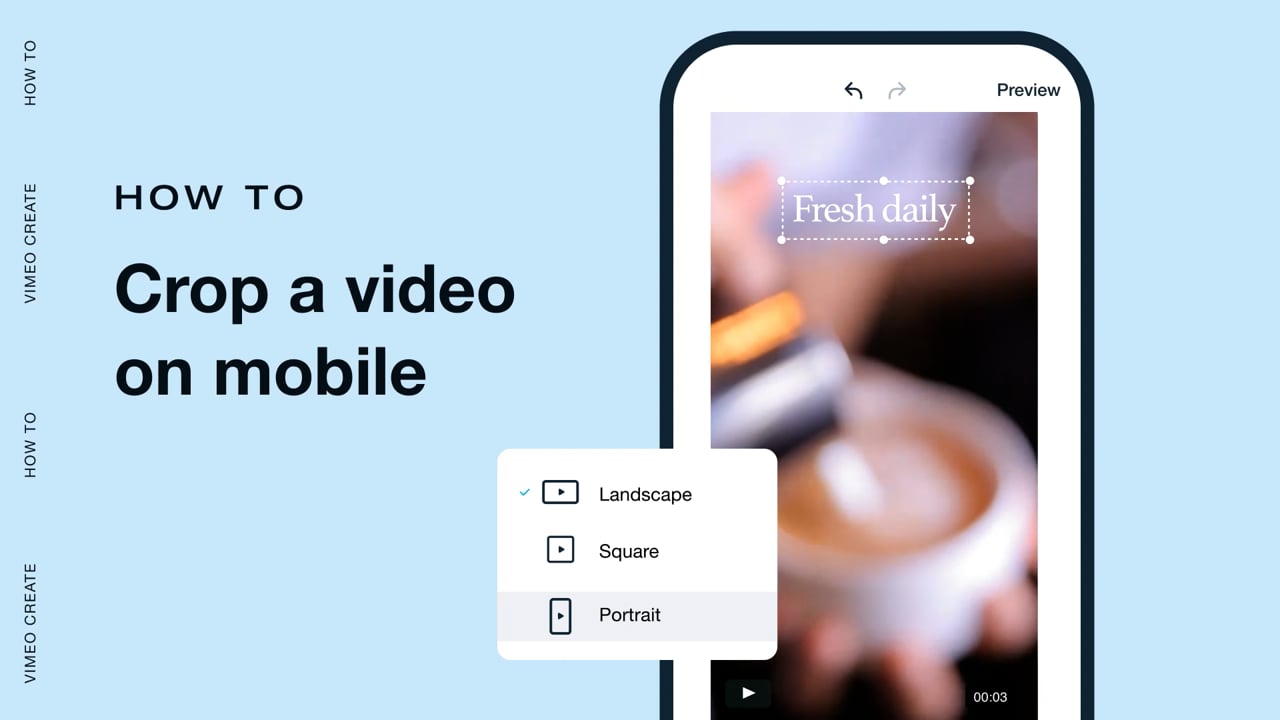
Then, ask how precise the loop needs to feel. If you need the loop to roll over at an exact frame, you'll get smoother results by editing the clip itself. Vimeo’s editing tools can help here, too. Trim dead space, crop framing to fit different layouts, and resize for different placements before you publish or embed the video directly from Vimeo’s online editor.
You can run a quick check to see which will be most useful. Preview the video on a video-based social media platform, like Instagram or TikTok. If the loop has any hiccups when you watch it, open it in a video editor and refine the clip before you export or upload it. If Instagram’s automatic loop gets the job done, stick with player-based repeat playback.
Want your loops to look intentional across every placement? Try Vimeo’s video editor to trim, crop, and resize your video so it loops cleanly wherever you embed it.
Try Vimeo for smooth, continuous playback loops
You don’t need expensive tools or years of editing experience to create a looped video. Determine the right approach and match your software to your editing platform, and you can loop your video in a few seconds.
Vimeo keeps things simple, even for loops that need a little extra precision. Loop videos automatically through player settings or embed parameters without modifying the original file. And by hosting your video through Vimeo, you’ll get advanced privacy controls and branding flexibility that fit professional use cases, so your video plays the way you want every time.