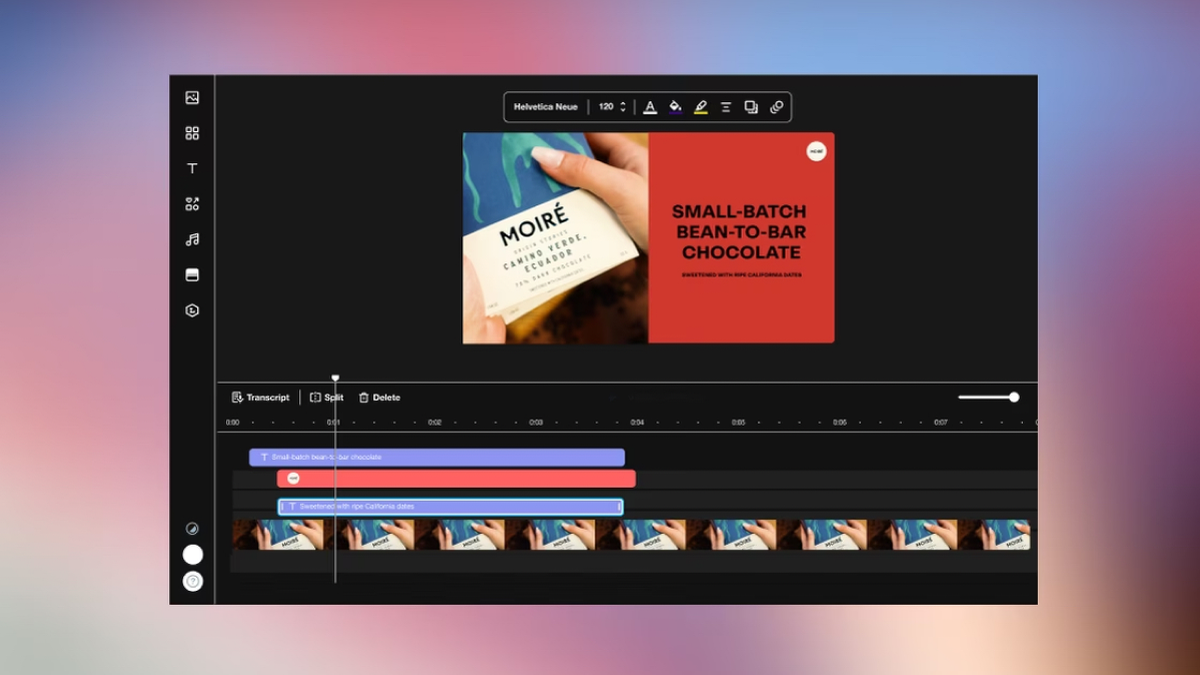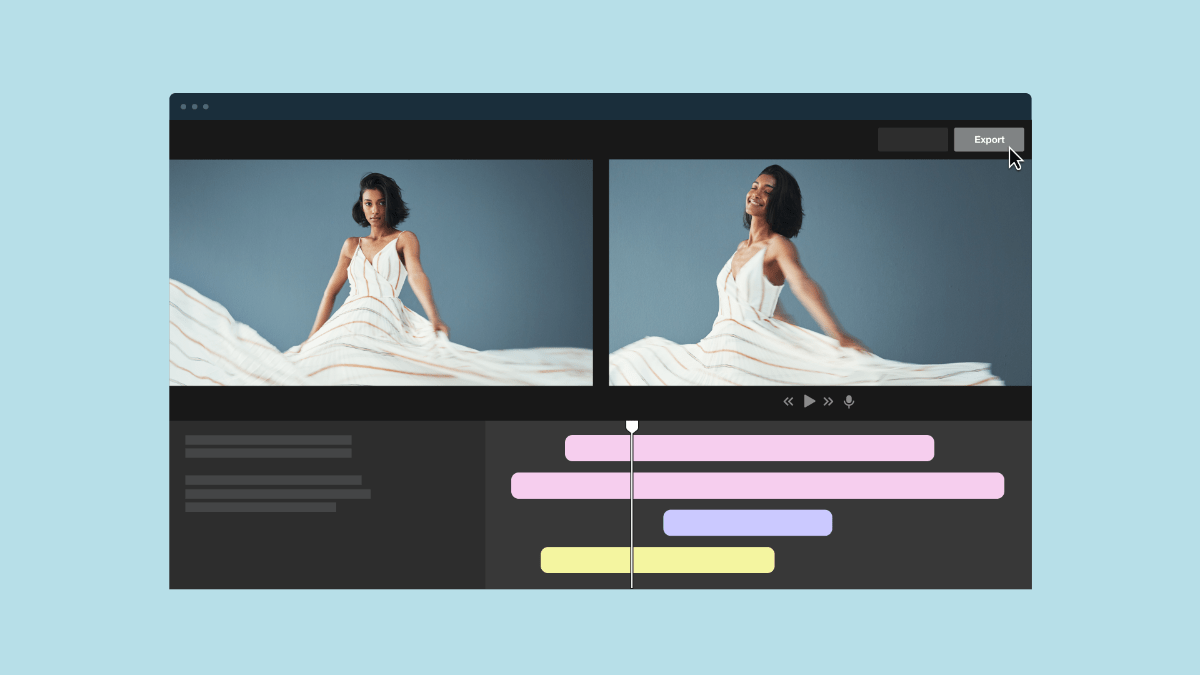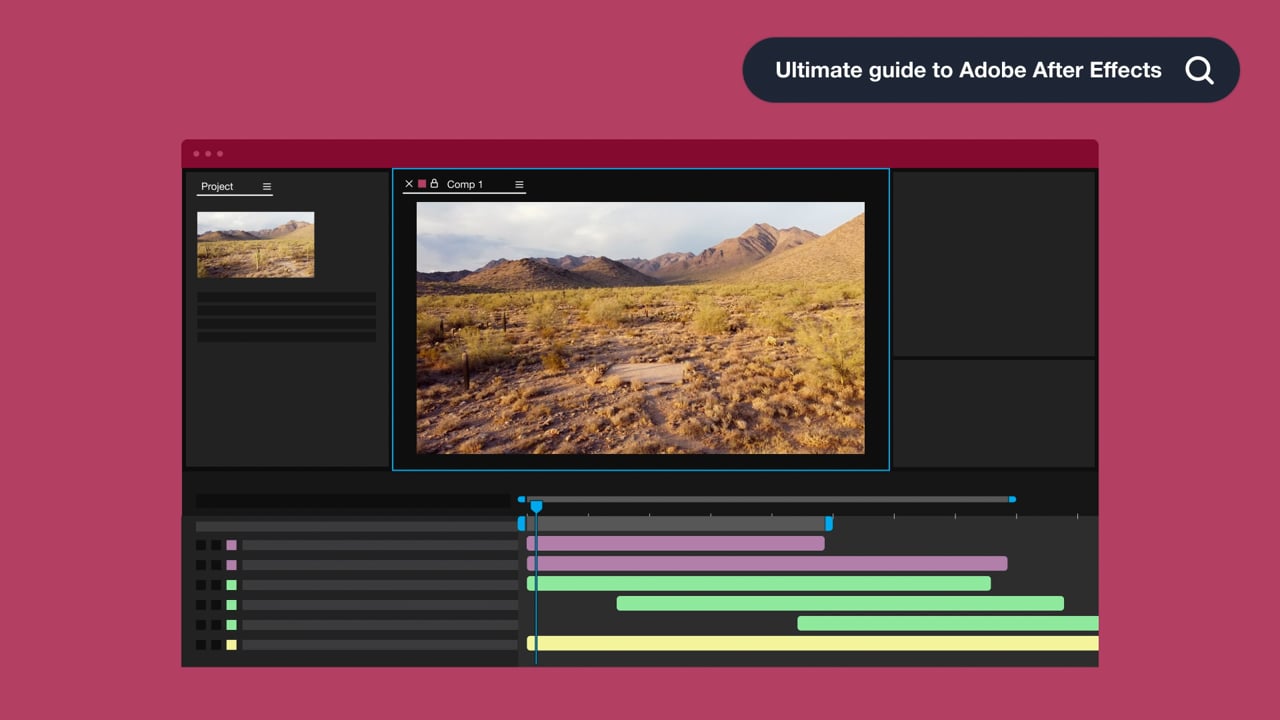
Motion tracking video editing shows up everywhere from callouts in product demos to privacy blurs in training videos. This kind of editing analyzes movement in footage so you can attach text, graphics, or effects that flow with the action. Nail the fundamentals, and your video editing work looks cleaner and more natural.
This guide breaks down what motion tracking is, how a motion tracker works, and where this kind of compositing fits into a video editor’s workflow. You’ll also see five video editing software and motion-tracking video editing app options that support tracking so you can pick the right video editor for your goals.
What’s motion tracking video editing?
Motion tracking video editing is the process of following movement in a shot and using that motion data to keep an overlay locked to what’s happening on screen. Your editor detects tracking points (details like corners, contrast edges, or patterns), then uses them to drive a graphic or effect so it stays aligned as the camera or subject moves.
Motion tracking is also one of the fastest ways to add clarity and polish when you’re creating a customer engagement video that needs callouts or highlights.
Core types of video motion tracking
There are several types of motion tracking, depending on what you’re adding or replacing:
- Transform tracking: Traces basic movement like position, scale, and rotation so an overlay follows a subject across the frame. This is a common choice for text labels and simple callouts.
- Corner-pinning: Uses four tracked corners to pin an element to a surface with perspective (like replacing a phone screen or adding a graphic to a sign). It’s often called the “screen replacement” style of tracking.
- Planar tracking: Tracks an entire flat plane, such as a wall or a laptop lid, rather than a single point. This makes results steadier than corner-pinning would when the camera angle shifts or the surface changes size or rotates in a 3D space.
- Matchmoving: Reconstructs camera movement so you can place elements into the scene as if they were filmed there. This is best for 3D inserts or effects that need to stay anchored to the environment.
- Surface tracking: Sticks an overlay onto more complex surfaces, including areas that bend or deform subtly. Some tools handle this method with advanced tracking or mesh-based approaches when flat planar tracking isn’t enough.
- Stabilization: Measures unwanted camera shake and applies inverse motion to smooth the shot. The goal is a steadier frame rather than additional graphics, but the tech behind it is still motion tracking.
- AI motion tracking: Uses machine learning to follow objects or regions with less manual setup. AI camera tracking, for example, reconstructs camera motion automatically, which means you won’t have to manually place markers like traditional matchmoving. It’s a good option when you need a faster edit — but you’ll still need to refine your results.
See how Vimeo AI can save time →
5 video editing programs with motion tracking features
A motion tracker’s quality depends on how well it can follow tracking points on an object, but that isn’t the only way you can differentiate motion-tracking software programs. Some motion-tracking software keeps things simple so you can quickly apply text or effects. Others go deeper with camera tracking and plane tools.
Here are five options that cover the most common motion tracking video editing needs.
1. Adobe Premiere Pro
Adobe Premiere Pro uses mask-based workflows for motion tracking, so effects stay attached as subjects move. It’s a practical pick when you want motion-aware edits without leaving your main video editor.
Adobe Premiere Pro is best at:
- Masking tracking for effects that follow motion: Track masks forward and backward so blur and other effects stay locked to a moving face, product, or region across the clip.
- Adding AI‑powered object masks in newer builds: Adobe is rolling out an AI Object Mask tool (available in Premiere Pro Beta at the time of writing) that can automatically isolate a person or object, then track that mask for targeted adjustments.
- Quick, localized compositing: Premiere’s tracking is ideal for tasks like blurring faces and keeping simple overlays aligned without having to jump between an editor and a VFX app.
2. CapCut
CapCut leans into AI-assisted motion tracking built for fast, social media-friendly edits. Its motion tracking tools focus on keeping text and effects locked to your subject without a heavy setup. However, they’re only available on CapCut Desktop (for Windows and Mac), not the mobile app.
CapCut Desktop provides:
- Automated object and camera tracking: CapCut’s motion tracking keeps overlays and effects synchronized with your subject’s movement, including camera-style shifts that keep the action framed how you want it.
- Creator‑friendly workflow in the main editor: You’ll add motion tracking directly from the right‑hand panel (“Tracking” or “Camera tracking” in the Video settings), so you can build motion‑aware callouts and labels without leaving the normal editing view.
- Multi-platform and free to download: CapCut’s motion tracking comes as part of its free desktop tool, not a paid add-on. Motion tracking and motion-aware editing are integrated with templates and assets that work well for vlogs and tutorial-style videos.
Compare Vimeo and CapCut →
3. Filmora
Filmora makes motion tracking approachable with a classic motion tracker for everyday “follow the object” edits and a newer planar tracking feature for perspective-correct surfaces. It’s another strong option for social media-ready edits and other clips that need a quick correction or a lighter touch.
Some of Filmora’s features include:
- Motion tracking for objects and overlays: In Filmora’s desktop editor, you can use the motion-tracking tool to draw a tracker box over a moving object, run the track, and link anything (including other video clips) so they follow the motion across the shot.
- Planar tracking for flat surfaces: Filmora offers a planar tracking feature that follows flat surfaces that change perspective in a video. This gives you more stable results for screen replacements or any video overlays that need to sit naturally on a plane.
4. DaVinci Resolve
DaVinci Resolve gives you a serious motion-tracking tool through Fusion, its node-based editing platform. This enterprise-quality program covers everything from simple object following to full compositing and matchmoving, making it a strong option if you need complicated edits with 3D integrations.
Some of DaVinci Resolve’s other strengths include:
- Planar tracking for surfaces in perspective: The planar tracker follows flat screens and captures placement, rotation, and scale changes for the best perspective.
- Camera tracking for 3D matchmoves: The 3D camera tracker reconstructs the camera move from your footage, letting you place 3D elements into the scene like they were always there.
- Node-based control for high-end composites: Because tracking data feeds into Fusion's node graph, you’ll get fine control over how tracked elements color-match, blend, and interact with the rest of the shot.
5. Blender
Blender is a free open-source software with built-in camera tracking and VFX-style workflows. It’s a great option when you want to solve a shot, then build a 3D compositing workflow around that data.
Blender also offers:
- Movie clip editor for feature tracking: Blender's motion tracking workspace lets you track points in the Movie Clip Editor and use that information to drive objects or constraints in your scene.
- Camera and object solves for 3D inserts: This tool can track both camera and object motions, so you can add 3D models or effects to live-action footage and match the movement accurately.
- Stabilization and scene orientation tools: Built-in stabilization and scene setup tools (like setting the ground plane and origin) help you clean up shaky shots and align your 3D work with the practical footage before compositing.
Tips for better video tracking results
Here are a few tips to help you get steadier tracking points and cleaner overlays:
- Choose high-contrast tracking points: Pick details with sharp edges (like corners, logos, and eyes) so your motion tracker has something to follow clearly across frames.
- Avoid cluttered backgrounds: When there’s a lot of movement or visually similar textures in a background, tracking points jump, and your overlay starts to drift. A simple background improves the accuracy and reliability of your motion tracking.
- Optimize frame rate and shutter speed: It’s harder to track motion on choppy footage, especially for camera tracking and fast-moving subjects, so it’s important to get your capture settings right from the first take.
- Use the right tracker for the shot: Use point tracking for small details, planar tracking for flat surfaces, and camera tracking to anchor compositing for camera movement-driven edits.
- Refine results when the track slips: Scrub the timeline to find where the track drifts, then fix it by retracking that segment before you attach anything. Otherwise, overlay errors will multiply later in the edit.
Bring motion tracking into your workflow with Vimeo integrations
Once you understand motion tracking, you start seeing opportunities everywhere: A label that stays pinned to a product, a blur that follows a face, an annotation that moves with the action. Keep testing different shots and tracking approaches as you edit, because small improvements in your tracking choices can make your videos look noticeably more polished over time.
When you’re ready to turn those motion-aware edits into a repeatable process, Vimeo gives you a clean way to keep the workflow moving. Vimeo’s integrations with third-party apps like iMovie and Adobe Express keep your workflow from becoming overly complex by storing everything in one place. You can edit and enhance videos in our streamlined browser-based editor, then manage review and sharing privileges from one place.