Remote filming is no longer a backup plan — as distributed teams and digital-first communication reshape how content is created, it’s become a standard part of video production for many teams. And while remote workflows bring new challenges, the ability to create content this way lets you assemble the perfect team and collaborate seamlessly across borders.
This guide explains how remote filming works and how to get great results without a studio or on-site crew. You’ll learn how to plan the shoot and move the video all the way from recording to publishing.
What’s remote filming, and how does it work?
Remote filming is a way to record video when the subjects, crew, or both are in different locations. Instead of bringing everyone to the same place, each person records remotely with their own camera, and uploads the footage for centralized editing and review.
That makes remote filming different from a standard video call or a live stream. Video calls are best for real-time conversations, not high-quality recordings, while live streams are designed to broadcast in the moment. In contrast, you’ll use a remote shoot when you want to capture footage, then refine and publish it later.
Most remote production follows one of two workflows:
- Synchronous setup: Someone directs the shoot live and gives feedback on framing, audio, and delivery as the recording happens.
- Asynchronous setup: People or teams record on their own and upload the footage to a central location.
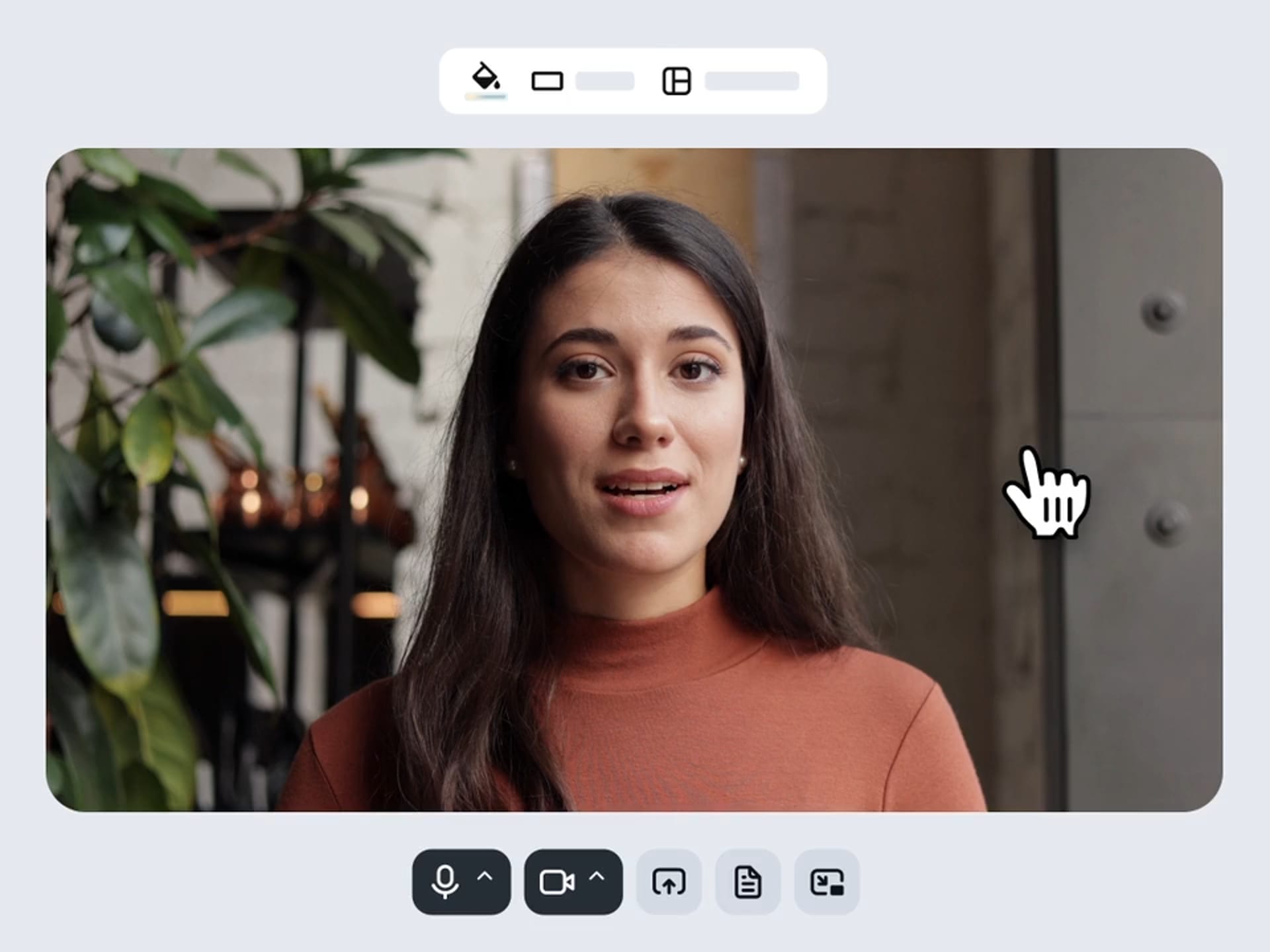
Keep in mind that not all remote video work is traditional “filming.” If you’re planning to assemble content based partially or fully on screen capture and webcam video, a browser-based tool like Vimeo Record lets you capture footage easily and move straight to uploading and sharing.
Get started with Vimeo Record →
What types of videos are best suited to remote filming?
Remote filming isn’t convenient for every type of video content, but it consistently performs well when used to create:
- Executive interviews and thought leadership videos: A simple camera or webcam setup, paired with a teleprompter if needed, keeps delivery sharp while maintaining a natural feel. This lets leaders record remotely without blocking off a full production day.
- Customer testimonials: Asking clients to film remotely makes it easier for them to participate, because they can work on their own schedules in familiar settings. You can still offer tools and guidance to improve framing and shot consistency.
- Webinars and other virtual events: These video formats already bring speakers and attendees together online, so remote filming fits naturally. Recording speakers remotely also gives you footage you can repurpose later or turn into monetized content.
- Product demonstrations and walkthroughs: If you want to walk people through a task or product features, you can get a lot of mileage out of screen recordings combined with webcam footage.
- Online training and onboarding content: A consistent shot, clear audio, and optional teleprompter keep complex training content structured and easy to follow. Teams can record modules remotely and update them as processes or products change.
What are the key benefits of remote filming?
Instead of coordinating a full crew and location for every shoot, you can film remotely, upload footage quickly, and move straight into post-production. This offers your team the following advantages.
Lower production costs
Remote filming removes many of the biggest expenses tied to a traditional shoot. You don’t need to pay for travel, large crews, studio space, or complex equipment setups. In many cases, a single person with a webcam or camera can handle the end-to-end filming process.
Access to global talent
When you film remotely, location becomes less of a constraint. You can record interviews and testimonials with just about anyone, and you don’t have to coordinate travel or schedule around a limited physical shoot window.
Faster turnaround times
Remote workflows tend to move faster because everything stays digital. Once a recording is complete, you can upload the footage immediately, start post-production, and share video drafts for review — all without waiting for in-person handoffs.
More flexible scheduling
Remote filming removes the need to align everyone at the same time and place. With asynchronous recording, contributors can record when they’re ready, reducing delays and making it easier to coordinate a shoot across time zones.
Scalable content creation
Remote filming makes it possible to produce lots of content without increasing production overhead as much. You can run multiple shoots in parallel and collect footage from different locations, all while standardizing how each shot is recorded and delivered.
Tips for producing high-quality remote videos
These tips will help you improve your remotely shot footage before it reaches post-production:
- Prioritize clear audio: Use dedicated mics when possible and ask speakers to wear headphones, then make sure everyone is plugged into the right inputs before filming.
- Use natural or diffused lighting: Ask each speaker to face a window or soft light source so the shots look even and clear.
- Maintain visual and brand consistency: Keep backgrounds, framing, and on-screen graphics consistent across shots. This keeps the final video easy to follow and makes it look like everything was filmed in one spot.
- Prepare speakers well in advance: Send setup instructions a few weeks before the shoot, and include instructions about camera placement and audio checks to prevent common issues.
- Keep framing stable and professional: Show participants how to set their cameras at eye level, and encourage them to use tripods or solid surfaces. Those small fixes keep the shots steady and prevent the video from looking awkward or uneven.
How to film remotely with minimal fuss: 10 steps
Follow these steps to plan a successful shoot and move through the post-production process faster.
1. Define your objectives and audience
Start with the outcome — decide who the video is for and what action you want viewers to take. Use that baseline to determine whether the video should be a formal interview, walkthrough, training clip, or internal update.
2. Select the right remote setup
Match your setup to the video format. A webcam works for internal updates, while customer-facing content often benefits from higher-quality remote setups that include external cameras.
3. Prepare cameras, lighting, and audio
Make sure all participants have what they need, and give them setup instructions. Remind them to set the camera at eye level, face a soft light source, and use a dedicated mic if possible.
4. Optimize sound quality
Each participant should record in a quiet room and silence notifications. For multi-person shoots, use headphones to cut out as much background noise as possible.
5. Adjust framing and background
Keep the shots simple — the more basic the style, the more consistent the footage will be. Leave a little space above each speaker’s head, and remove distracting items from the backgrounds so the focus stays on the subjects.
6. Conduct a technical test
Run a short test with each participant before the real recording starts. Check the audio, camera, framing, and internet stability, and conduct a last-minute check-in to make sure everyone knows how the remote shoot will run.
7. Record with backups
When possible, record using a backup audio source and camera, especially if you may not be able to reshoot footage. And if time permits, get a few takes of each shot so video editors have more raw material to work with.
8. Centralize and organize footage
Upload all the files to one shared video library as soon as filming ends. Use clear file names so your team can find the right shots, speakers, and versions without sorting through scattered footage.
9. Edit and refine the footage
Trim pauses, fix rough transitions, clean up audio, and align visuals across the video. This is also when you’ll prepare clips and branded elements for the final version.
Polish your remote footage to perfection with Vimeo →
10. Review and finalize the video
Share the edited video for review, make any final changes, and confirm the approved version before you hit publish. A thorough review step gives your team a final chance to assess overall quality and consistency.
Essential tools to improve your remote filming workflow
As you prepare for your remote shoot, make sure that participants and your content team have all the video equipment they’ll need, including:
- Cameras or webcams: Use a dedicated camera or high-quality webcam for sharper footage during remote filming.
- External microphones: Built-in mics pick up noise, while a USB or lav mic captures clearer audio and reduces the need for post-production fixes.
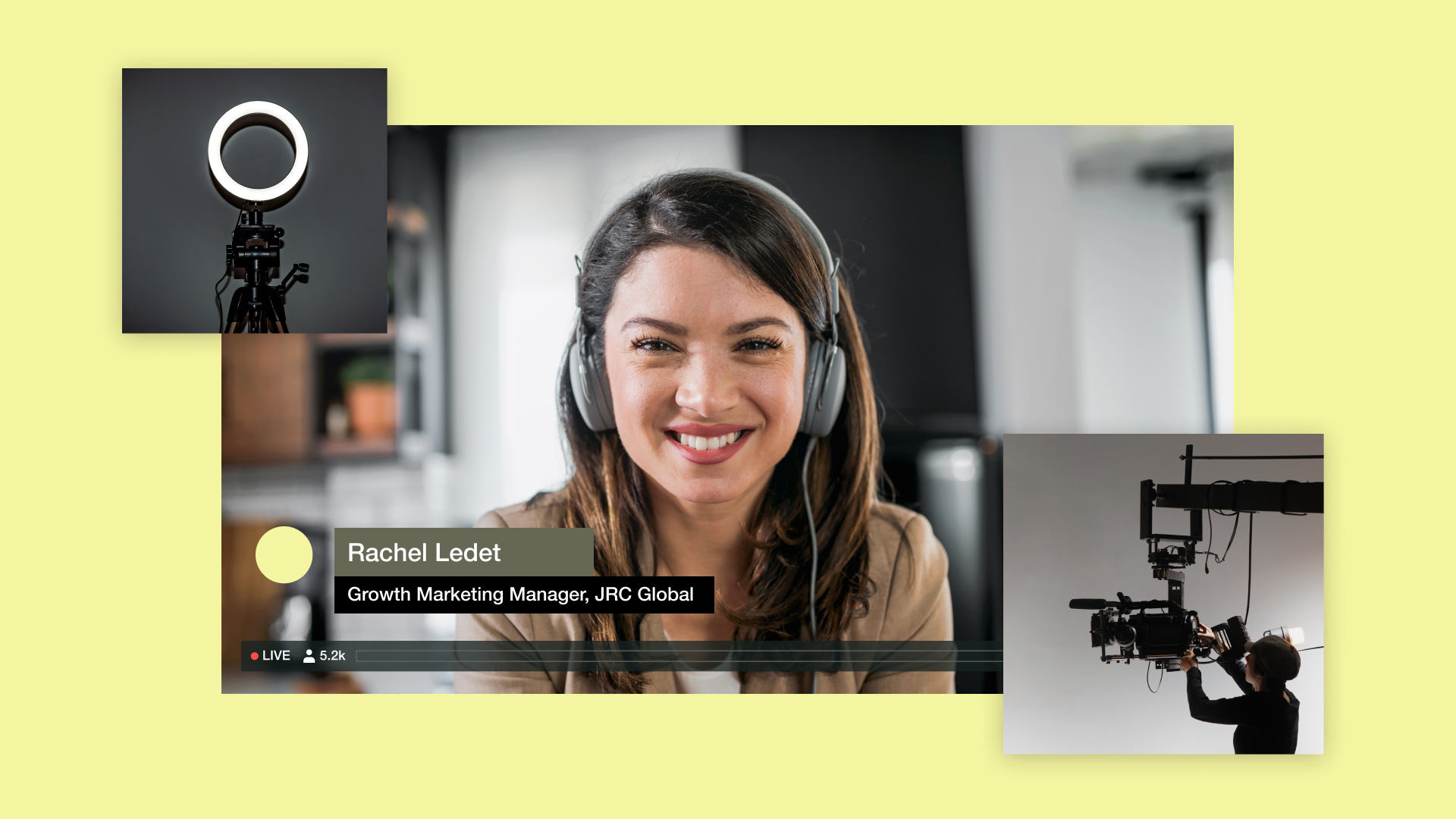
- Lighting equipment: Even a basic ring or soft light can elevate a remote shot noticeably.
- Tripods: Stabilize all cameras on a tripod or a solid surface — shaky footage lowers perceived quality fast.
- Screen recording software: Video recorder apps like Vimeo Record let participants capture their screens and cameras simultaneously, which makes both remote filming and asynchronous communication easier.
- Cloud storage: Store and organize your footage in one place so everyone can collaborate smoothly and avoid version confusion.
- Collaboration and feedback tools: Centralize comments and approvals to help your team review footage and move projects forward fast.
- Video hosting and distribution platform: Don’t forget to consider how you’ll share the video once it’s ready. Vimeo combines professional hosting, customizable Video Players, privacy controls, and Video Analytics.
Scale remote filming and get great results with Vimeo
Remote filming has shifted from a workaround to a standard way teams create and share video content. To get consistent results without relying on in-person production, you should plan the shoot well in advance, make sure all participants have the tools they need and set them up correctly, then follow a clear process to edit and manage the footage.
Vimeo brings that entire workflow into one place — you can get footage with Vimeo Record, stream with Vimeo Live, upload and organize shots, collaborate on edits, and share content using a secure, branded Video Player. This gives you a smoother way to handle remote filming from start to finish, while keeping tight control over quality and performance.