Frame rate is one of the first settings you'll configure when preparing to capture video, and it's also one of the most consequential. Your chosen frame rate impacts how motion appears onscreen, whether your footage feels cinematic or hyper-realistic, and if you can pull usable slow-motion clips from what you shot.
This article explores what camera frame rate is, when to use the most common fps settings, the relationship between frame rate and shutter speed, and how to choose the right settings during your video production process.
What’s frame rate, and how does it work?
Video may appear smooth, but it’s really a sequence of still images displayed fast enough that we perceive motion. Frame rate is the speed at which those still images, or frames, play back. So it also represents the number of shots your camera captures, measured in frames per second (fps). For example, a video clip shot at 24 fps contains 24 individual images per second of footage.
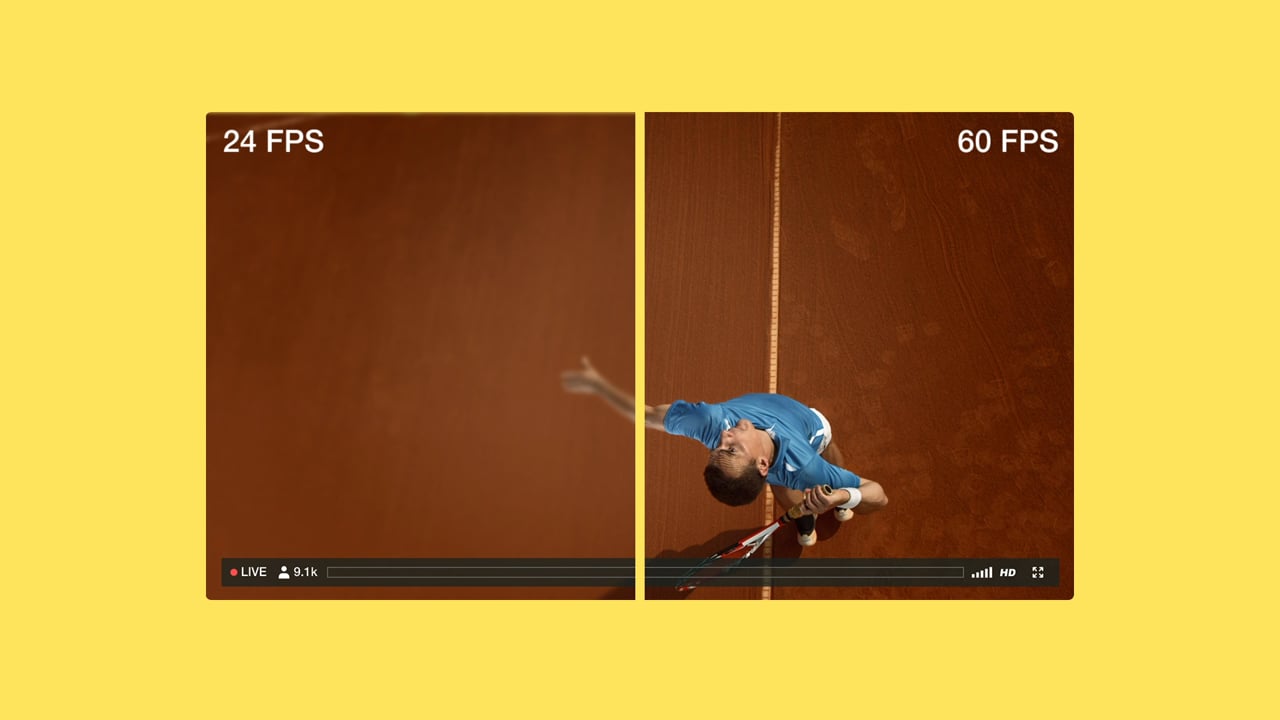
As a practical camera setting, frame rate is the dial that controls how smooth or cinematic your footage looks. The higher the fps is, the smoother motion will appear on screen. Higher fps settings also produce larger files that demand more storage, and they give each frame less time to gather light — which means your camera needs more illumination to maintain the needed exposure.
Also, keep in mind that frame rate is important, but it’s not the only setting that impacts video quality. It’s important to understand how video resolution and bitrate interact with frame rate, so you can avoid most common problems and set your shoot up for success.
Common frame rates and when to use them
Most cameras offer a variety of frame rates for video shoots. Each option produces a distinct look, so the right choice depends on what you're shooting and how you want motion to appear on screen.
Let’s look at the most common fps settings and what they’re best used for.
24 fps
24 fps is the standard for narrative film and cinematic content. At this camera frame rate, videos have a familiar amount of motion blur that viewers will associate with movies, making it a good choice for scripted videos and short films.
Talking-head interviews and vlogs also work well at 24 fps. The lower frame count softens small movements and reduces visual noise from nervous energy in front of the camera.
30 fps
30 fps is the standard for broadcast television, news, and most online videos. Motion is slightly smoother than 24 fps, without tipping into the hyper-real territory that higher frame rates produce. This setting is a reliable default for tutorials, product videos, corporate content, and social media clips, especially when you want clean, easily watchable footage without a strong stylistic leaning.
60 fps
60 fps delivers noticeably smoother motion than lower frame rates, and it holds up well when subjects or the camera move quickly. Sports, action sequences, and other shots with significant movement will benefit from the added frames.
This is also the minimum frame rate you’ll need to capture if you plan to slow footage down to 30 fps during post-production. Shooting at 60 fps and then adjusting to 30 fps creates a 2x slow-motion effect, without dropping frames or degrading the clip.
120 fps
120 fps is mainly used for slow-motion video content. When reduced to 30 fps in your video editor, 120 fps footage gives you a 4x slow motion effect with fluid, unbroken movement. The result works well for athletic sequences and cinematic camera shots.
Keep in mind that storage demands increase significantly at this frame rate, as your camera needs to capture thousands of still images per minute. In addition, you’ll need stronger lighting, since each frame has less exposure time.
To sum up, here’s how these popular camera frame rates compare.
Frame rate | Effect | Use cases | Considerations |
24 fps | Cinematic look with natural motion blur | Film, narrative content, vlogs | Less smooth; not ideal for fast action |
30 fps | Clean, slightly smooth footage | Broadcasts, tutorials, social videos | Neutral look; less cinematic than 24 fps |
60 fps | Smooth, high detail shots | Sports, action footage | Larger files; can look hyper-real |
120 fps | Ultra-smooth action at reduced playback speeds | Slow motion shots | Largest files; needs more light per frame |
Edit your footage with Vimeo →
Frame rate vs. shutter speed: What's the difference?
While frame rate determines how many images your camera captures each second, shutter speed controls how long each individual frame is exposed to light. These two settings are usually separate controls, but they work together to shape the final video’s appearance and quality.
The standard way to pair these settings is called the 180-degree shutter rule: set your shutter speed to double your frame rate. Shooting at 24 fps means using a shutter speed of 1/50 — the closest standard option to 48 (24 x 2). At 30 fps, you’d use a shutter speed of 1/60, and at 60 fps you’d opt for 1/120.
This ratio produces a familiar, natural-looking amount of motion blur that works well for most video types. A shutter speed that's too fast reduces motion blur and gives movement a sharp, staccato quality. Some directors use that combination of settings deliberately for a jittery, unsettling effect, but in standard footage it usually looks like a technical error.
Since higher fps settings require faster shutter speeds, each frame gets less exposure time. In low-light conditions, that often means adding artificial light or adjusting your ISO to compensate. Your shutter speed and frame rate choices should always be made together, in context with the type of content you’re shooting and the desired effect.
Make the most of your video footage with Vimeo
Choosing the right settings, including frame rate and shutter speed, is vital for creating clean, usable footage. But what you do with that footage after the shoot determines whether it reaches your audience and has the right impact. This is where your video equipment choices and your post-production workflow need to work smoothly together.
Vimeo's built-in video editor lets you cut and arrange footage without leaving the platform. That's useful when you're working with clips shot at different frame rates, and you need to trim efficiently without losing quality. AI-powered tools, including filler word removal and text-based editing, speed up the process of turning raw footage into finished pieces.
High-resolution hosting preserves the quality of your footage regardless of the frame rate you shoot at, so 60 fps and 120 fps clips don't lose detail on upload. And Vimeo’s centralized Video Library keeps all your footage organized and shareable, whether you're managing a single project or a full archive of shots.
Host your videos with Vimeo →
FAQ
How do you avoid video flickering related to power frequency?
Artificial lighting flickers at the frequency of your local power supply. That’s 50Hz in most of Europe and Asia, and 60Hz in North America. Using shutter speeds that align with that frequency, such as 1/50, 1/60, and multiples like 1/100 and 1/120, is the main way to prevent flickers from appearing in your video footage.
What’s video playback frame rate?
Your camera's capture frame rate and your editing timeline's playback frame rate are separate settings. The timeline frame rate determines how your finished video plays back, regardless of what fps the original clips were shot at. For most projects, you should set your timeline to match your primary capture frame rate.
Why do many cameras and phones default to 30 fps?
30 fps is a long-established standard for North American broadcasts and general video content. This frame rate produces smooth, clean motion without heavy file sizes, which makes it a practical choice across a wide range of devices and platforms.