Screen recording is a great way to quickly produce training videos, demos, marketing clips, and internal memos. But for best results, you’ll need more than whatever lightweight tool is pre-installed on your device.
Choosing the right screen recorder helps you capture high-quality footage and avoid retakes or heavy edits. You can work fast, yet produce professional results that get your message across accurately and represent your brand well.
In this article, we’ll introduce six of the best screen recorders for marketers and businesses. But first, let’s talk about what these tools can do.
Why do you need a professional screen recorder?
Whether you’re creating a tutorial or highlighting a software feature, screen recording is a great way to demonstrate a complex series of steps. This type of video is quick to produce, and it lets you walk viewers through a story or process in an authentic, conversational way.
You can use screen recording for:
- Internal communications: Show your colleagues how to complete a task or troubleshoot a problem, using an easily sharable format that’s more accessible than lengthy documentation.
- Learning and development: Give employees or students clear visuals that illustrate key concepts or walk through lengthy courses step-by-step.
- Marketing content: Showcase your product with hands-on demonstrations that are easy to follow and remember.
6 best screen recording tools for business use
Here are six screen recording platforms and what makes each one stand out.
1. Vimeo
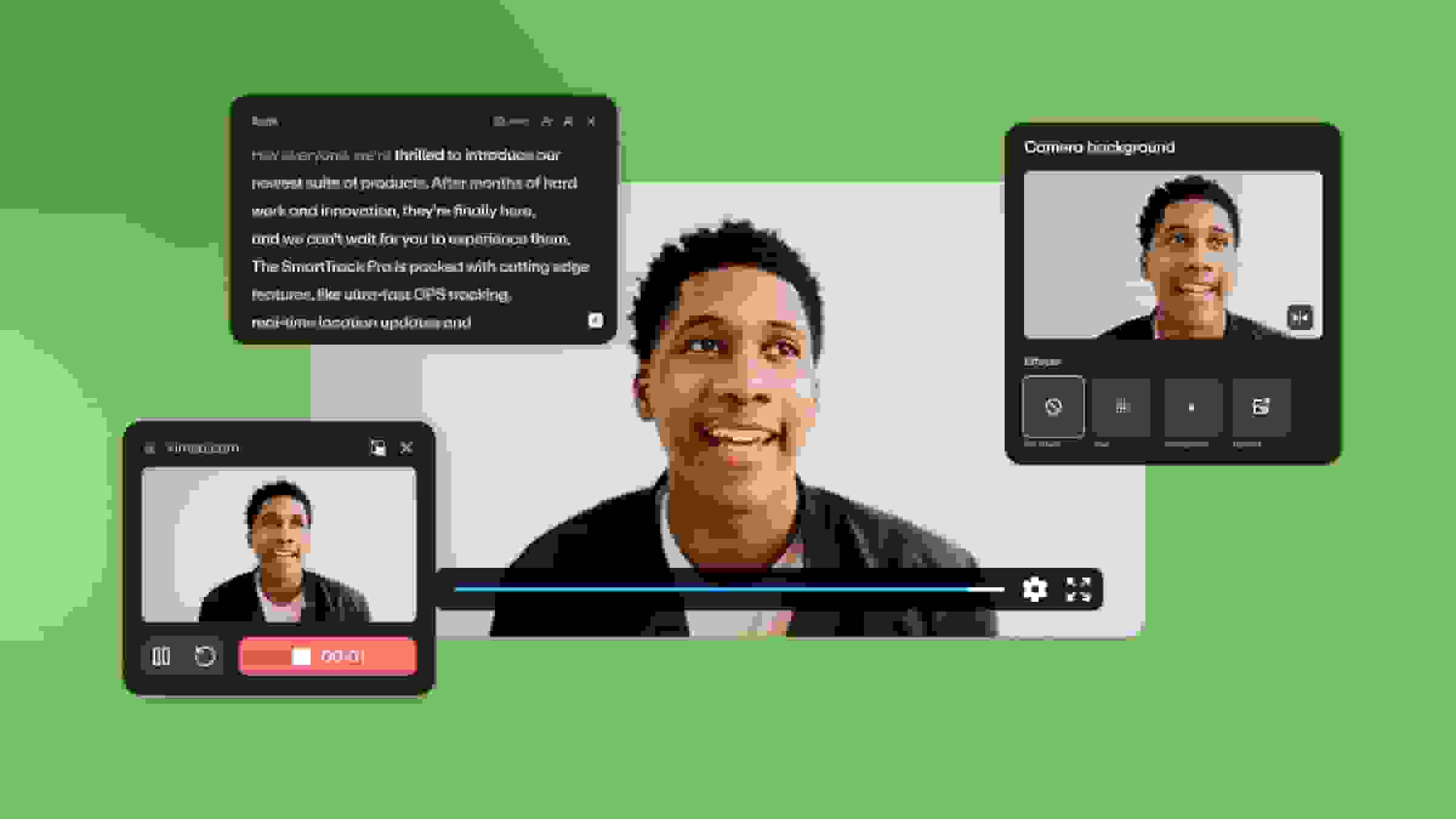
Vimeo’s Screen Recorder is a completely free browser-based tool. It captures multiple input sources, and unlike many other platforms, it doesn’t add watermarks or limit video lengths. You’ll also get basic editing tools on the free tier, plus more advanced options like text-based editing and AI script generation with a premium plan.
Key features:
- Recording for screens, microphones, and webcams
- Built-in teleprompter that keeps your script scrolling as you speak
- Editing tools like resizing and background blur
- Control over aspect ratios and resolutions
- Links for easy sharing
Pros:
- Easy to pick up and use, with pre-built templates that fast-track production
- Integrates with Vimeo’s video editing, management, sharing, and secure hosting tools
Cons:
- Paid plan required for annotations and other advanced editing features
Platforms: Chrome, Edge, Safari, Firefox, iOS, and Android
Pricing: Free tier available, paid plans start at $12 per month
Record high-quality video and audio with Vimeo →
2. Movavi
Movavi’s screen recorder is part of a larger video editing suite, but there’s a free trial that’s essentially a lite version of the premium software. If you only need to make a short recording (<60 seconds) and you don’t mind watermarks, this tool is a quick and simple option.
Key features:
- Real-time annotations
- Noise reduction features
- Option to schedule recording in advance (such as for capturing live streams)
Pros:
- Integrates with the rest of Movavi’s video editing tools
- Offers offline recording
Cons:
- Need to purchase Movavi Ultimate to access full screen recording functionality
- Free version places a watermark on your videos
Platforms: Windows and macOS
Pricing: Free tier available, paid plans start at $29.99 per month
3. VEED
VEED is a browser-based editing platform that lets you generate videos from scratch using AI. It also offers a free video screen recording tool that captures multiple sources and includes basic editing and optimization.
Key features:
- Variety of pre-built video layouts
- AI tool that corrects eye movements
- Background editing and clip splicing
Pros:
- AI-enhanced workflows
- Unlimited recording
Cons:
- Options in free and low-tier plans are limited
- Performance can lag when working with large or high-resolution files
Platforms: Chrome, Edge, Firefox, and Safari
Pricing: Free tier available, paid plans start at $12 per user per month
4. Loom
Loom is dedicated screen recording software that’s part of the Atlassian ecosystem but can be used as an independent tool. Loom has an intuitive interface and user-friendly customization options, and it offers multiple ways to share your videos online.
Key features:
- Screen recorder that records multiple audio and video sources simultaneously
- Editing tools to trim/stitch clips, customize backgrounds, and add overlays
- Cloud video storage
Pros:
- Quick creation and easy sharing are useful for in-house communication
- Viewers can add comments and emoji reactions to provide feedback
Cons:
- Editing tools are basic when compared to a platform like Vimeo
- Offline functionality is limited
Platforms: Chrome, Edge, Firefox, Safari, Windows, and macOS
Pricing: Free tier available, paid plans start at $15 per user per month
5. OBS Studio
OBS Studio is a free, open-source screen recorder used by content creators and video professionals. Its features are geared toward streamers and online personalities who need customizable software for capturing a variety of desktop footage.
Key features:
- Customizable sources and input/output resolutions
- Ability to stream and record simultaneously
- Audio mixer
Pros:
- One of the best screen recording software options for Windows users
- Active community and frequent updates
Cons:
- Complex setup when compared to alternatives
- New updates can introduce bugs and compatibility issues
Platforms: Windows, macOS, and Linux
Pricing: Free and open source
6. ScreenPal
ScreenPal is a basic screen recorder for desktop and mobile devices. The free version caps your recording length at 15 minutes, but it comes with helpful features like background blurring and online video hosting.
Key features:
- AI tools for voices, avatars, and visuals
- Customization options like video captions, annotations, overlays, and backgrounds
- Chroma keying to remove blue/green screens
Pros:
- Real-time annotations
- Custom area recording
Cons:
- Uploads can be slow, especially when working with bulk files
- Limited collaboration tools for teams
Platforms: Chrome, Edge, Firefox, Safari, Windows, macOS, Android, and iOS
Pricing: Free tier available, paid plans start at $4 per month
How to choose the best screen recording tool
Before you commit to a screen recorder, make sure it supports the kind of videos you plan to create. Pay attention to:
- Platform type: If you make long-form videos using a variety of audio and video sources, a software solution might be best. If you just need to capture a camera, a screen, and a microphone, a browser-based tool helps you work quickly.
- Resolution limits: Most free options limit resolutions to 720p, so for high-quality screen recordings, you’ll need a paid solution that also offers cloud storage for large files.
- AI features: You can use AI to streamline video creation by generating scripts and visuals, translating and dubbing audio, editing footage, and creating metadata.
- Ease of use: Especially if you work with a team, your screen recording and editing software must be accessible to everyone. Look for a demo or free trial, and make sure your chosen tool doesn’t have a steep learning curve or require technical expertise.
FAQ
What is the best screen and audio recorder for PC?
For PC users, it really comes down to whether you’re a power user or just need to send a quick update. OBS Studio is the undisputed heavyweight for anything complex—it’s free, open-source, and gives you total control over multi-source audio—but the learning curve can be pretty steep if you’re just starting out. At Vimeo, we built our screen recorder to be the "no-friction" alternative, so you can capture your screen and webcam right from your browser and have a shareable, ad-free link ready the second you hit stop.
What is the best online teleprompter software?
If you’re looking for a reliable way to stay on script without that "staring into the void" look, the best tool usually depends on whether you want the script to follow your voice or a set timer. Vimeo offers a teleprompter directly in-browser that handles the scrolling for you and even uses AI to help you draft the script in the first place. It stays all in one window so you never have to break eye contact with your audience.
What do YouTubers use to record their screens?
Many YouTubers use the open-source OBS Studio platform to record their screens, because it’s free and compatible with most streaming platforms. For more professional results, you can use a video solution like Vimeo that offers screen recording, text-based editing, streaming tools, and multichannel publishing.
Is screen capture illegal?
Some screen capture is illegal, if you’re using it to duplicate copyrighted material or share personally identifiable information without expressed consent. For example, recording a Netflix movie is illegal, and so is sharing a screen that displays a user’s contact information (without their permission).
How do I record screen and voice on my iPhone?
Most mobile OSs include a native screen recorder that lets you capture video and audio from your device. On an iPhone, this option is under “Settings” > “Control Center” > “Customize Controls” > “Screen recording.” Once enabled, you can swipe up from the bottom of your screen and tap “Record” to begin capturing.
Get fast and powerful screen recording tools with Vimeo
There’s no shortage of screen recording platforms — to narrow the field, look for an option that’s compatible with your devices and versatile enough for everything you plan to record. And make sure you get editing features that help you polish recordings so they look professional and communicate your message effectively.
Vimeo’s Screen Recorder is a fast, easy-to-use online tool that doesn’t require downloading or complicated setup. Just pick your video and audio sources and click “Record,” then seamlessly edit and share the results with your audience through the same platform.