OBS Studio is a free desktop app for live streaming and screen recording. It lets you create scenes, add sources like cameras, screens, images, audio, then push video to platforms like YouTube and Twitch.
Many creators start with OBS because it's free and handles nearly any source or output type. But this platform takes time to configure and can be resource intensive. Plus, one small change to a source or filter can throw off your scene layout and audio levels.
If you’re looking for OBS alternatives that minimize those issues, this guide compares nine top options for creators, educators, marketing teams, and businesses.
Here are the tools we’ll cover:
- Vimeo: All-in-one platform for recording, editing, hosting, and sharing videos.
- Bandicam: Lightweight screen recording for local files.
- StreamYard: Browser-based live streaming.
- Lightstream: Cloud studio for console streaming and overlays.
- Camtasia: Full desktop editor for educational videos.
- Wirecast: Advanced live production on desktop.
- XSplit: Windows live studio with plugins and upgrades.
- Wave.video: Browser-based suite for editing, streaming, and hosting.
- ScreenPal: Simple recorder to edit and share training videos fast.
Why look for an OBS alternative?
You might choose to move on from OBS if you want:
- More stable performance: With OBS, if your CPU/GPU spikes while you’re streaming or screen recording, you’ll likely see dropped frames or choppy playback.
- A quicker learning curve: Scenes, sources, filters, and audio routing take time to learn and troubleshoot, especially for new editors or teammates.
- Better stability: If you record weekly training or go live on a schedule, you may need a setup with less moving parts that behaves consistently every session.
- Simpler sharing: After recording, you can lose a lot of time exporting and moving files to the right places.
- Built-in editing tools: Streaming software that supports trimming and captions means you don't need a second tool for basic edits.
- Multistreaming without extra setup: Streaming to multiple platforms doesn’t have to require extra configuration or a separate service.
- New integrations: Browser-based tools with many integrations make it simpler to manage guest streams, overlays, alerts, and recordings across channels.
Key features to consider in an OBS alternative
If you're looking to solve one or more of the above problems, these features will steer you to a better fit than OBS:
- Customizable, repeatable workflows: Look for an interface that lets you save layouts and reuse settings without rebuilding scenes every time.
- Controls for recording and stream quality: Good streaming software makes it easy to set resolutions, frame rates, and audio inputs, then keep those settings consistent across sessions.
- Built-in editing tools: You should be able to make basic edits right after the recording, instead of having to export to another program.
- Hosting, sharing, and metrics in one workflow: Look for hosting and sharing controls that streamline publishing, and make sure you can track key streaming metrics to measure engagement.
- Easy integrations: Your recording and editing studio should integrate smoothly with other important tools, such as ecommerce and marketing software.
9 best alternatives to OBS Studio
If you’re looking for apps like OBS, these nine picks are worth considering. Let’s look at top OBS competitors that offer desktop studios, browser-based tools, or all-in-one platforms.
1. Vimeo
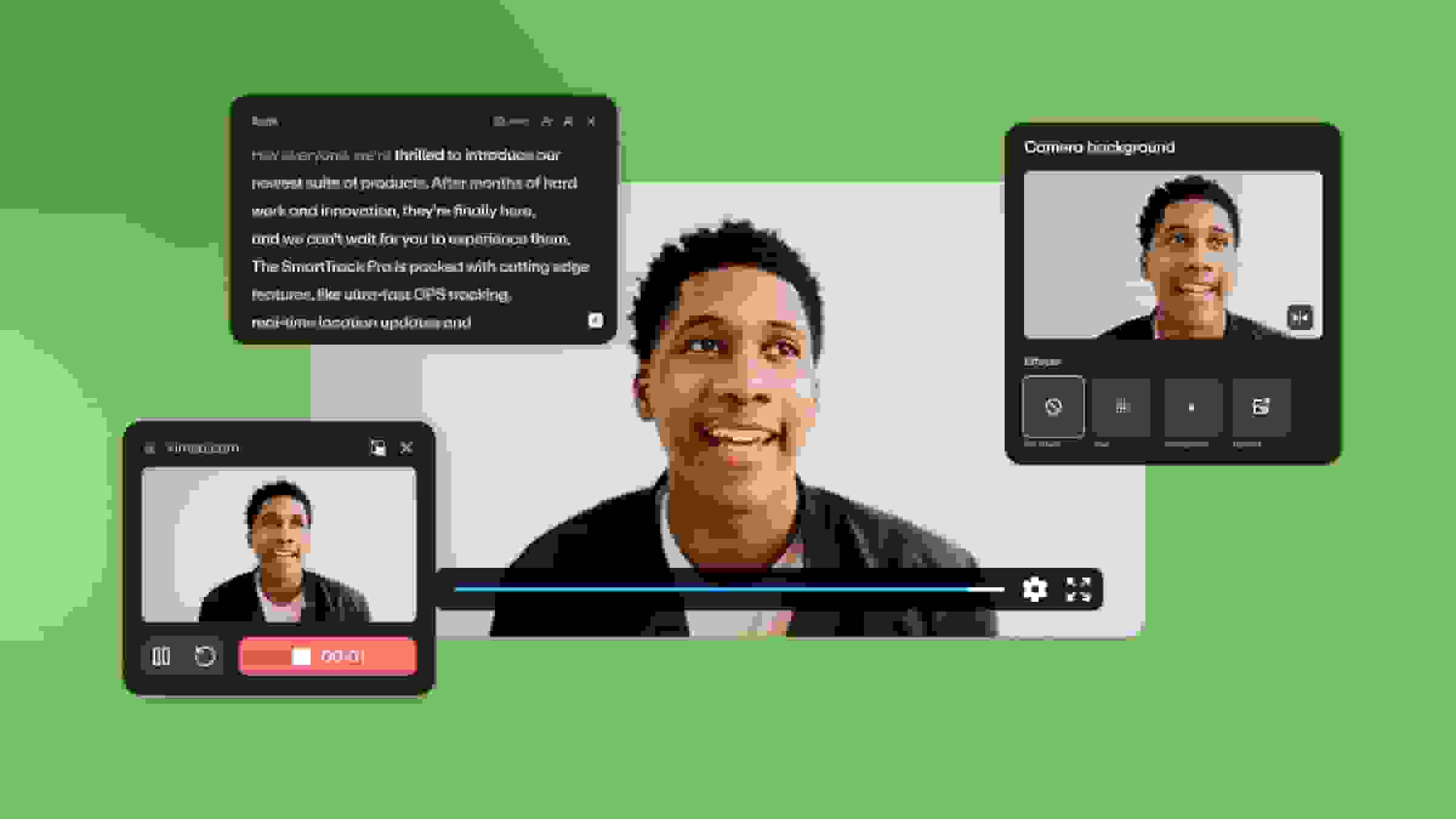
Vimeo is a complete video toolset that combines recording, editing, hosting, and sharing into a single workflow. This platform is designed for businesses and professional creators who want high-quality captures alongside polished playback, brand control, and engagement tracking.
Pros:
- Record high-quality videos and live streams
- Trim and polish footage with a Video Editor
- Securely host videos online
- Share content with a branded, customizable Video Player
- Organize libraries with Video Showcases
- Control access with robust sharing settings
- Track performance with Video Analytics
Cons:
- Not the best fit for complex live switcher workflows
- Limits and feature availability vary based on plan tier
Pricing: Free plan available, paid tiers start at $12/month
Streamline professional video editing with Vimeo →
2. Bandicam
Bandicam is a lightweight desktop screen recorder built for local capture. This software is best used for screen tutorials and gameplay recordings, especially when you want a simple desktop workflow rather than a full streaming studio.
Pros:
- Options for recording your full screen or a specific window/region
- Webcam and device capture
- Saves in MP4 and AVI video formats
- Game capture compatibility (DirectX/OpenGL/Vulkan)
- Real-time drawing tools and mouse effects
- Records up to 4K and handles high frame rates
Cons:
- No built-in live streaming
- No Linux desktop app
Pricing: Free plan available, paid tiers start at $2.78/month
3. StreamYard
StreamYard is a live streaming and recording studio that runs in your browser, and it’s built primarily for guest shows, webinars, and multistreaming.
Pros:
- Browser-based studio with no installs required for guests
- Multistreaming functionality
- Local recordings with separate participant files
- Chat overlay and on-screen comments
Cons:
- Fewer encoder and audio-routing controls than OBS
- Very limited video/viewer analytics
Pricing: Free plan available, paid tiers start at $35.99/month
4. Lightstream
Lightstream is a cloud-powered live streaming studio that runs in your browser. This tool allows for console streaming and fast overlays without the need to run a weighty OBS-like setup.
Pros:
- Cloud capture for Xbox and PlayStation
- Simulcasting for to up to five destinations
- Custom RTMP support
- Templates for one-click setups
- Built-in overlays and alerts
Cons:
- Designed around console plus browser workflows, not ideal for desktop capture
- Limited advanced editing and customization options when compared to alternatives
Pricing: Free plan available, paid tiers start at $12/month
5. Camtasia
Camtasia is a desktop screen recorder and video editor designed for tutorials and training videos. This platform will best suit creators who need to put out a lot of educational content fast, as it’s designed for recording once, then cleaning up the video on a simple timeline.
Pros:
- Multitrack recording for separate edits
- Text-based editing through transcription
- Cursor effects, callouts, and annotations
- Themes and templates for consistent branding
Cons:
- Not focused on live streaming needs
- Lacks hosting and management tools included in full video platforms like Vimeo
Pricing: Free plan available, paid tiers start at $39/year
6. Wirecast
Wirecast is a desktop live streaming and production studio for Mac and Windows. This software is built for multi-camera broadcasts, and it offers deeper control than most browser-based studios.
Pros:
- Unlimited live camera sources
- Built-in streaming destinations
- GPU-accelerated encoding
- Layer-based compositing
Cons:
- Steeper learning curve than browser-based platforms
- Runs locally, so performance depends on your hardware setup
Pricing: Free plan available, paid tiers start at $399/year
7. XSplit
XSplit is a Windows live streaming and recording studio with a scene-based workflow. Creators who want OBS-style control with extra plugins and production features will get the most from this tool.
Pros:
- Ability to record and stream at once
- Custom RTMP output
- Noise suppression tools
- Extensions store
Cons:
- Windows-only software
- Plugin-heavy workflows can add complexity and introduce technical issues
Pricing: Free plan available, paid tiers start at $14.99/month
8. Wave.video
Wave.video is a browser-based platform that combines video editing, live streaming, recording, and video hosting. Instead of focusing on general video production, however, Wave.video is primarily designed for social media publishing workflows.
Pros:
- Online video editor
- Webcam and screen recording, plus multistreaming
- Customizable templates
- Ability to stream pre-recorded video
Cons:
- Performance issues on mobile devices and certain browsers
- Assets and editing tools are somewhat limited
Pricing: Free plan available, paid tiers start at $16/month
9. ScreenPal
ScreenPal is a screen and webcam recorder with a basic editor and built-in hosting. With ScreenPal, you get a simple tool for recording, polishing, and sharing training videos and walkthroughs.
Pros:
- Screen and webcam recording
- Built-in editor for trims and overlays
- Interactive quizzes and polls
- Runs on Windows, Mac, iOS, Android, and ChromeOS
Cons:
- May experience performance issues, especially with long and high-quality recordings
- Editing tools are more limited and less intuitive than many alternatives
Pricing: Free plan available, paid tiers start at $4/month
Create and stream professional, engaging videos with Vimeo
OBS Studio works well when you want deep control over a local live setup, but many creators have different needs. Choose a tool that fits your content and workflows, whether that means a free OBS alternative for quick and simple training videos or a comprehensive platform for quality, monetized streams.
If you need to create and publish professional, polished videos, Vimeo covers everything from planning to performance tracking. You can record footage, edit and add effects, publish through secure online hosting, and share with a branded player. Vimeo also helps you organize your Video Library and track metrics to see how viewers engage.