Camtasia has long been a popular tool for all-in-one screen recording and multi-track editing. But today‘s video software needs to support faster turnarounds and smoother collaboration, especially for large teams with robust media libraries.
Otherwise, you wind up in a familiar bottleneck — desktop-only editing, manual exports, and a growing pile of local project files you have to organize and back up. This kind of routine hurts workflow efficiency, and it makes video content harder to manage and publish regularly.
This guide introduces nine Camtasia alternatives, so whether you’re building an online course or sending internal updates, you can decide which tool fits your workflow best.
What are Camtasia’s strengths and limitations?
Camtasia is screen recording software that lets you capture screens, webcams, and audio. Then you can edit the footage and sound in a multi-track timeline, and add callouts, cursor effects, and annotations.
Pros:
- Beginner-friendly interface and tools
- All-in-one workflow
- Accessible drag-and drop editing
Cons:
- Desktop-first and file-heavy system
- Export/upload friction
- AI is present, but limited
Camtasia alternatives: A quick comparison
Product | Strengths | Weaknesses |
Vimeo | Record, edit, review, and host video content in one place | Internet-dependent |
Loom | Record-and-share links for fast updates | Minimal editing and hosting controls |
Filmora | Template-heavy desktop editing with visual effects | Can lag on older PCs; busy interface |
ScreenFlow | High-res macOS recording with full timeline | Mac-only; export/upload for hosting |
Movavi | Simple desktop editing for quick tutorials | Free version limits; lighter pro tools |
OBS Studio | Free advanced capture with scene control | Steep learning curve; no built-in editor |
ActivePresenter | Interactive lessons built for LMS delivery | Dated UI; setup takes time |
ScreenPal | Budget classroom recording with annotations | Limited timeline/audio mixing; slow on long HD projects |
Free Cam | Simple Windows capture with audio cleanup | Windows-only; limited formats and no webcam |
9 top Camtasia studio alternatives: Pros, cons, and use cases
These Camtasia competitors solve different problems, so here's how to find one that matches your content and the way you publish and share videos.
1. Vimeo
Category: Enterprise cloud-based platform
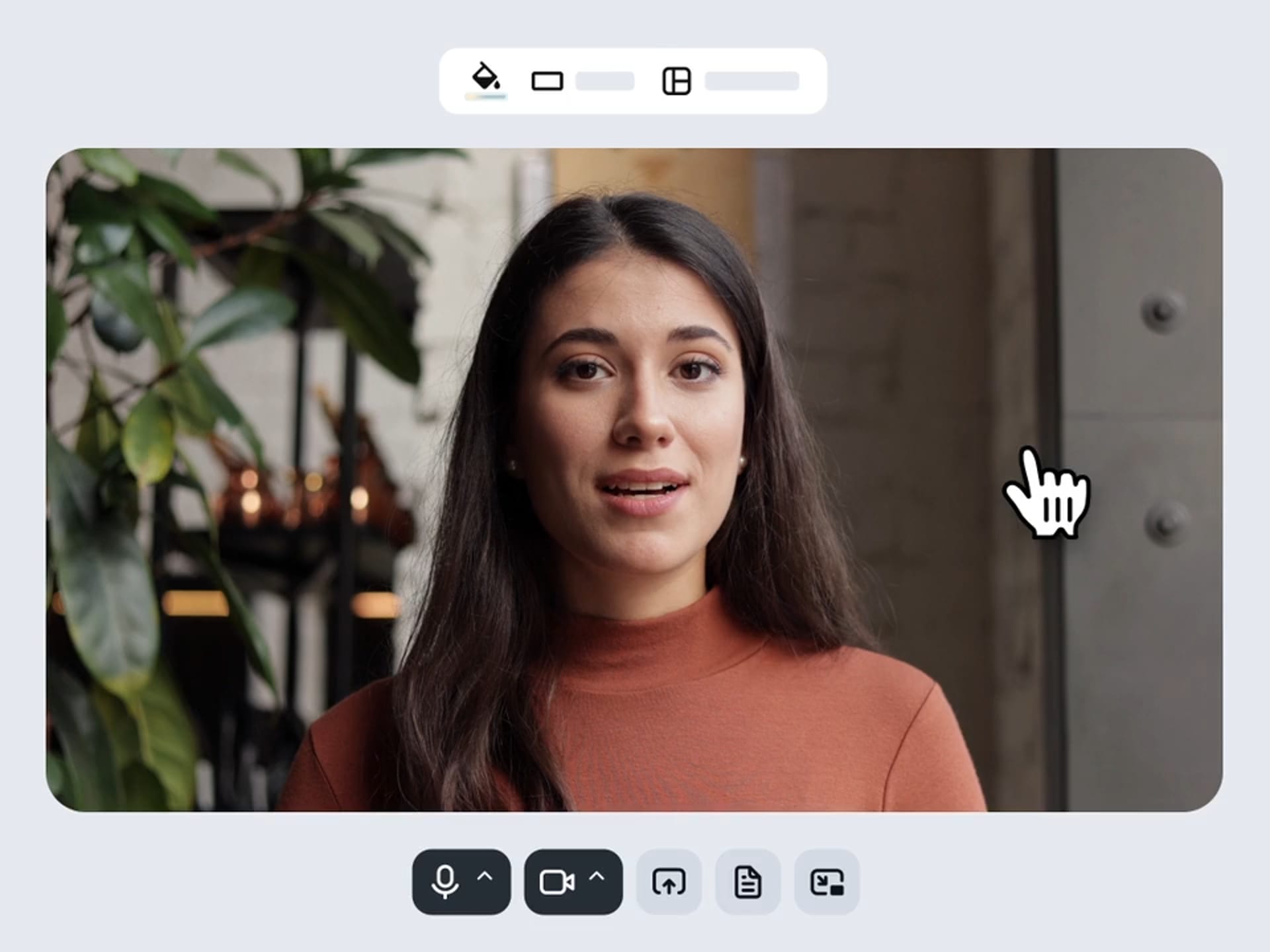
Vimeo keeps production and distribution in the same place, so you don’t have to export a file every time you need to publish an update. Use Vimeo when you want a clean path from recording to shareable links, plus a home base for managing and tracking finished videos.
Pros:
- Browser-based video recording and editing to keep you out of the upload-export loop
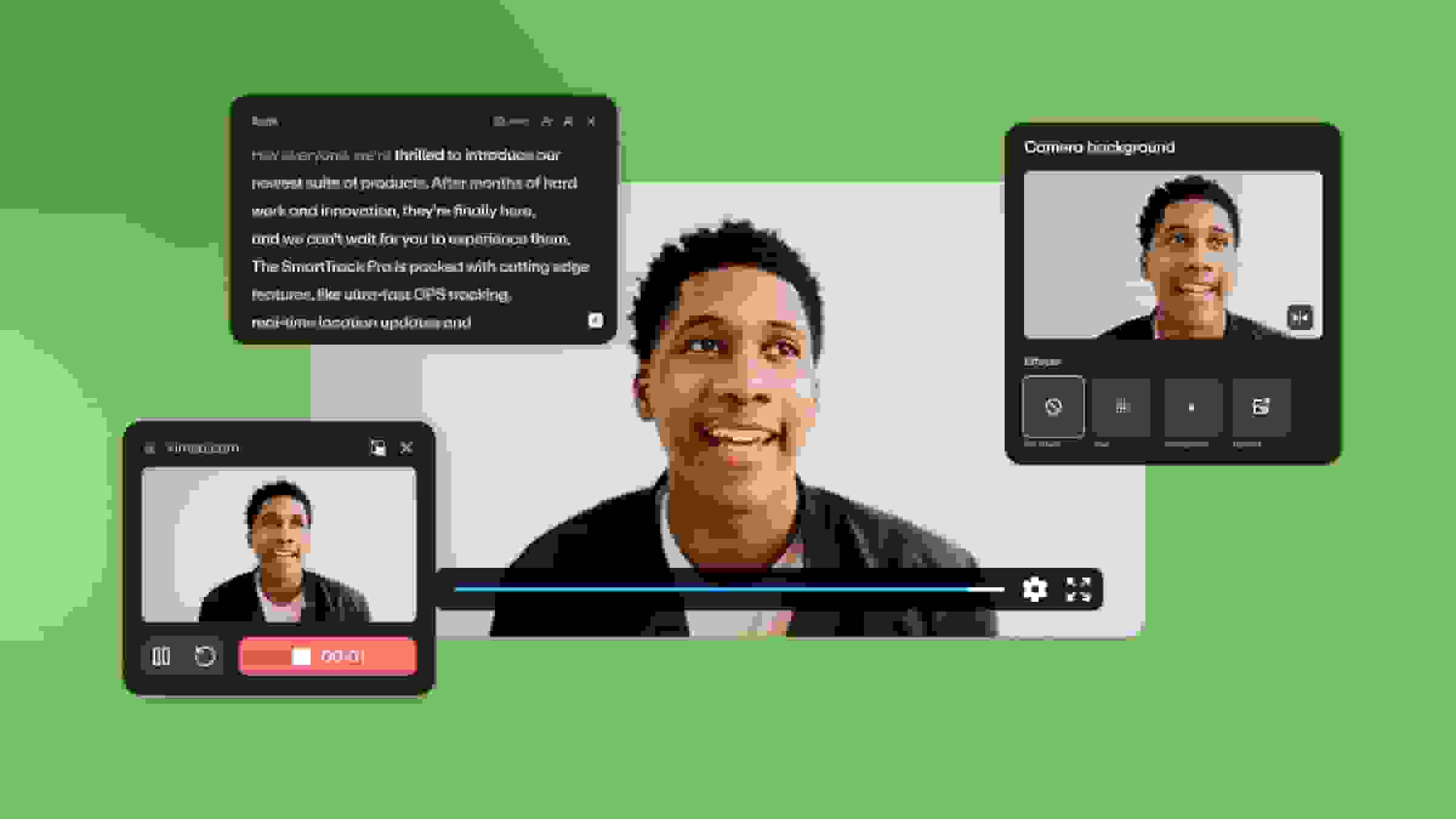
- AI features that streamline workflows, such as text-based editing and script generation
- Secure hosting and sharing controls integrated with your Video Library
- Review and feedback tools that keep approvals tied to the right versions
Cons:
- Cloud-first editing works best with a stable internet connection
- Built for streamlined editing, not manual frame-by-frame animation work
Best for: Professional marketers and content creators who want an all-in-one cloud ecosystem with more video management features than Camtasia
Create professional, high-quality videos fast with Vimeo →
2. Loom
Category: Asynchronous communication tool
Loom is built for speed — it’s useful for sharing information informally in video format, so it’s a common choice for internal training and communication.
Pros:
- Instant link sharing
- Screen and webcam overlays for quick walkthroughs
- Works well for short updates and async collaboration
Cons:
- Editing options are limited
- Not designed for high-quality content you’ll share with external audiences
Best for: Managers who needs quick team updates without the overhead of detailed editing
3. Filmora
Category: Professional desktop editor
Filmora is a desktop timeline editor built for creators who want faster, more effects-driven edits than Camtasia typically supports. You can use Filmora to create screen recordings, then add visual polish using masks and template elements.
Pros:
- Timeline editing with built-in effects and templates
- AI-assisted features for quick cutouts and visual tweaks
- Useful for for marketing-focused social media clips
Cons:
- Can run slowly on older computers
- Some editing tools are limited, while others are locked behind high-tier plans
Best for: Creators who want to work heavily with pre-built assets like templates and effects
4. ScreenFlow
Category: Mac-only desktop suite
ScreenFlow is a macOS-only screen recorder and timeline editor built primarily for high-resolution educational content. If you record on a Mac and want a stable workflow with fast renders, ScreenFlow can be a better pick than Camtasia.
Pros:
- Multi-track timeline designed for tutorial-style editing
- Strong performance for high-resolution recording
- Supports Apple device capture workflows
Cons:
- Mac-only, so it’s not an option for Windows-based teams
- Need to export files and upload them somewhere else to host and share videos
Best for: Educators, HR teams, and marketers who want to record and edit high-resolution footage
5. Movavi
Category: Entry-level desktop software
Movavi is beginner-friendly desktop software for screen recording and basic editing, which makes it most useful for internal how-to videos and short tutorials.
Pros:
- Simple editing workflow that’s quick to learn
- Cleanup tools for basic audio and visual editing
- Asset library with templates, transitions, visuals, and audio effects
Cons:
- Free tier is restrictive, while paid tiers can be pricey for smaller teams
- Editing controls aren’t as extensive as some alternatives
Best for: Beginners who want simple edits and quick exports
6. OBS Studio
Category: Open-source software
OBS Studio is a freeware Camtasia alternative that’s best for creators who want total control over capture quality, layouts, and sources.
Pros:
- Highly configurable for complex recording setups
- Scene switching supports demos and live-style layouts
- Free and open-source design
Cons:
- Steep learning curve for new users
- No built-in video editor, so you’ll need another tool to polish recordings
Best for: Power users who want total control over capture and layout
7. ActivePresenter
Category: Specialized educational platform
ActivePresenter helps you design training content that lives inside a learning management system (LMS). This tool is handy when you need to create interactive lessons with elements like quizzes and click-through steps, and you also want an LMS that tracks student progress.
Pros:
- Supports interactive video elements like quizzes and lesson branching
- Helps with structured course creation
- Works well when you need LMS-friendly deliverables
Cons:
- Interface can feel dated, and interactive features take time to set up
- Not the best fit for non-instructional content
Best for: Instructional designers who build interactive training courses
8. ScreenPal
Category: Budget-friendly hybrid tool
ScreenPal is a simple solution for making classroom-style recordings. This platform is built for quick captures and offers on-screen drawing tools, basic trimming, and built-in hosting for school use.
Pros:
- Drawing and annotation tools that can be used while recording
- Simple video editing
- Hosting options designed for educators
Cons:
- Limited timeline control and editing options
- Long, high-definition recordings can take a long time to process
Best for: Teachers who want basic recording and light editing tools without paying for a full video suite
9. Free Cam
Category: Free Windows software
Free Cam is a simple Windows recorder that lets you capture your screen, clean up audio, and share basic videos.
Pros:
- Straightforward screen capture with minimal setup needed
- Audio editing for quick cleanups
- Supports direct YouTube uploads
Cons:
- Windows-only tool that lacks webcam recording
- Limited export formats and video effects
Best for: Educators and internal teams who work on Windows and needs a simple screen recorder for quick communication
See why Vimeo is a top tool for video creators and marketers
If you want high-end, cinematic control over your videos, a desktop-based product like Camtasia still makes sense. But most teams have different needs — they want to create quality videos quickly and easily, then share them securely and track engagement.
Cloud-based platforms like Vimeo support more streamlined record-to-share workflows. With Vimeo, you get AI-powered tools for faster edits, plus a centralized hub where you can organize videos, control access, share links, and manage analytics.