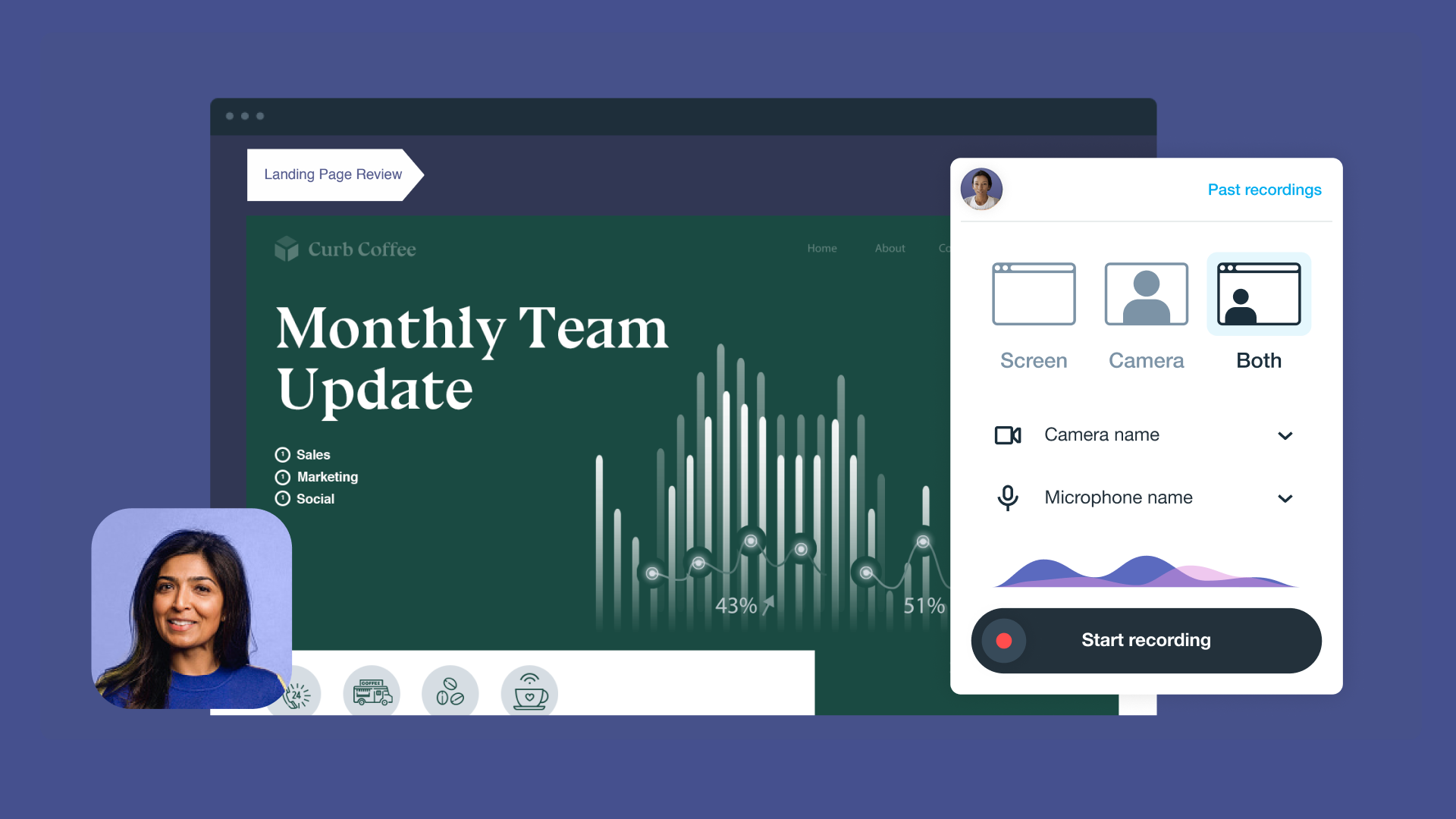
Screen recordings are great for quick, authentic video content — everything from tutorials and software demos to internal and client training. But even with good screen recording software, you’ll want to polish the results for maximum clarity and effectiveness.
For example, you may need to edit screen recordings in order to tighten pacing or make small UI details readable. Or you might have to fix audio issues that distract from your message. These changes also make the final product more professional, which encourages your audience to trust the content and pay closer attention.
In this article, we’ll introduce seven tools for screen recording and editing, plus top tips for turning raw footage into high-quality videos.
7 best screen recording and editing software options
A reliable screen recorder gives you a clean capture, while a good editor lets you tighten the cut and keep the viewer focused on the right details. These seven tools cover both ends of that workflow, and range from quick browser-based solutions to all-in-one desktop suites.
1. Vimeo
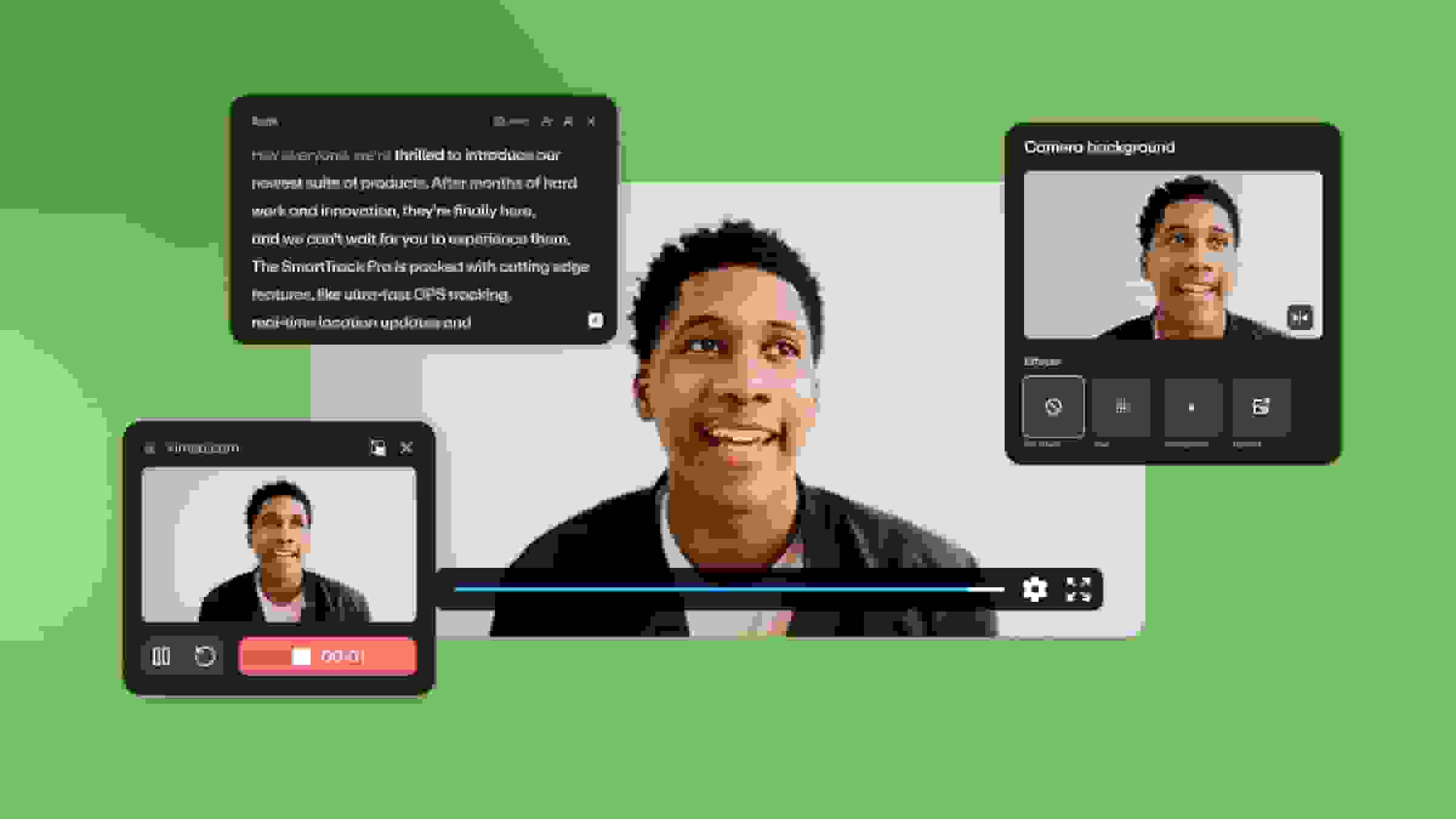
Vimeo is a comprehensive platform that offers tools for the full video creation workflow. You can record your screen (plus webcam footage and audio), and make quick changes using text-based editing. Vimeo also hosts your videos, so you can manage and share your entire library from one place.
Pros:
- Records in-browser and supports screen, webcam, and audio capture
- Includes built-in browser editing tools (like trimming and cropping)
- Offers privacy controls and video Analytics
- Securely hosts videos and provides multiple sharing options
Cons:
- Screen recordings are limited to 30 minutes on the free plan, and some advanced editing features require premium tiers
Pricing: Free plan available, paid tiers start at $12/month
Create a screen recording with Vimeo →
2. Camtasia
Camtasia offers a free web-based recorder for quick captures and a paid desktop editor for full timeline control. You can start in the browser to record footage and audio, then transition into the desktop app when you need more advanced edits.
Pros:
- Free online recorder with no watermarks
- Records screen, webcam, and audio
- Offers customizable layouts
Cons:
- Online recorder only supports basic trims, while full editing control requires a paid desktop subscription
Pricing: Free web-based tool available, full software starts at $39/year
3. OBS Studio
OBS Studio is open-source, free recording software that’s useful for high-quality captures. This platform is primarily designed for live streaming, so it offers lots of control over source and audio mixing and integrates with popular streaming platforms.
Pros:
- High-performance video/audio capture and mixing
- Scene switching that supports multiple sources (window captures, browsers, webcams, capture cards)
- Source-specific audio filters
Cons:
- No built-in timeline editing, so you’ll have to export recordings and finish them in another editor
Pricing: Free and open-source software
4. ScreenPal
ScreenPal is AI-based software that’s easy to get started with thanks to simple workflows and an intuitive interface. This platform offers basic screen recording and editing tools, along with secure hosting and sharing options.
Pros:
- Captures footage from screens and webcams
- Provides editing tools for trims, cuts, annotations, and interactive elements
- Uses AI to auto-generate scripts and captions
Cons:
- Editing and customization options are limited when compared to competitors
Pricing: Free plan available, paid tiers start at $4/month
5. Loom
Loom is built for asynchronous updates where you record footage, do a few light edits, share a link, and move on. There’s a focus on speed and convenience, making this a top choice for quick interoffice memos and other informal use cases.
Pros:
- In-browser and desktop screen capture via extensions and apps
- Editor supports trims, stitching clips, custom backgrounds, and simple overlays
- Intuitive link-sharing workflow with comments and reactions
Cons:
- Meant for low-stakes use, so video quality and processing speeds aren’t as strong as with more professional tools
Pricing: Free plan available, paid tiers start at $18/user/month
6. ScreenRec
ScreenRec is built for quick screen captures and instant sharing. This tool is useful when you need to show what happened and send the recording fast, such as for bug reports and troubleshooting.
Pros:
- Easy screen, webcam, and audio recording
- Annotations and comments
- Instant link sharing
Cons:
- Editing options are minimal, so you’ll need another tool for precise changes
Pricing: Free plan available, paid tiers start at $4/month billed annually
7. Clipchamp
Clipchamp is a browser-based screen and camera recorder with a built-in editor, so you can record, trim, and export files without installing a desktop suite. Clipchamp is part of the Microsoft ecosystem, making it a no-fuss addition to Microsoft-heavy workflows.
Pros:
- Camera, screen, and audio capture
- Unlimited recordings and watermark-free exports
- AI editing tools like auto-subtitles and voiceover generation
Cons:
- Browser editing can lag on longer videos or slower machines
Pricing: Free plan available, premium features require a Microsoft 365 subscription starting at $9.99 per month
How to edit your screen recordings
A few small changes in your video editor turn rough screen recordings into clear clips your viewers enjoy watching. Here are editing tips that improve clarity and flow:
- Cut and trim aggressively: Remove dead space, setup time, and mistakes you correct mid-recording, so the final product feels focused and professional.
- Add clear transitions: Use simple fades or cuts when you move between steps or sections to keep viewers oriented, but skip flashy effects that pull attention away from the message.
- Use text and annotations to guide attention: Add labels or short callouts when there’s a lot on the screen and you want the audience to know what’s important or make sure they don’t miss key elements.
- Enhance visuals for legibility: Zoom in on small menus and crop out distractions, and consider increasing cursor visibility so viewers can track the action.
- Break long recordings into shorter clips: Shorter chapters or segments are easier to rewatch, and they make tutorials feel structured and simple to follow.
Use Vimeo’s Editor to make quality screen recordings →
FAQ
How can you optimize audio quality in screen recordings?
Audio quality can make or break the viewer experience in a screen recording. So here’s how to enhance your screen recordings with audio:
- Use noise reduction to eliminate background distractions
- Balance audio levels so volume stays consistent and narration stands out
- Use music and sound effects purposefully and with restraint
Can you edit an iPhone recording?
Yes, you can edit an iPhone screen recording. Start in the Photos app for quick trims at the beginning or end, then switch to iMovie (or another mobile video editor) when you need text overlays or tighter audio control.
Create and edit polished screen recordings with Vimeo
For high-quality screen captures, record with a clear goal and keep the pacing tight. Use on-screen cues when the UI moves fast, and treat audio like part of the message rather than an afterthought. Even simple screen recordings benefit from careful edits that turn your message into watchable, effective videos.
With Vimeo, you can record your screen, webcam, and audio in one pass, make quick edits with browser-based video editing tools, then store everything in a secure and centralized video library. From there, you can share videos securely and use engagement data to see how viewers respond.